 Studio Updates for June

The last few weeks have been busy. We've shipped a wave of improvements to the show editor, real-time collaboration, mobile support, and the overall polish of the Studio experience. Here's a rundown of what's new.
Color in the Timeline
Programming color fixtures (like the LED Controller) got a major upgrade. If you caught May's State of the Lab you saw a demo of the new Color Groups feature that allows you to create color groups to do the color mixing for you.
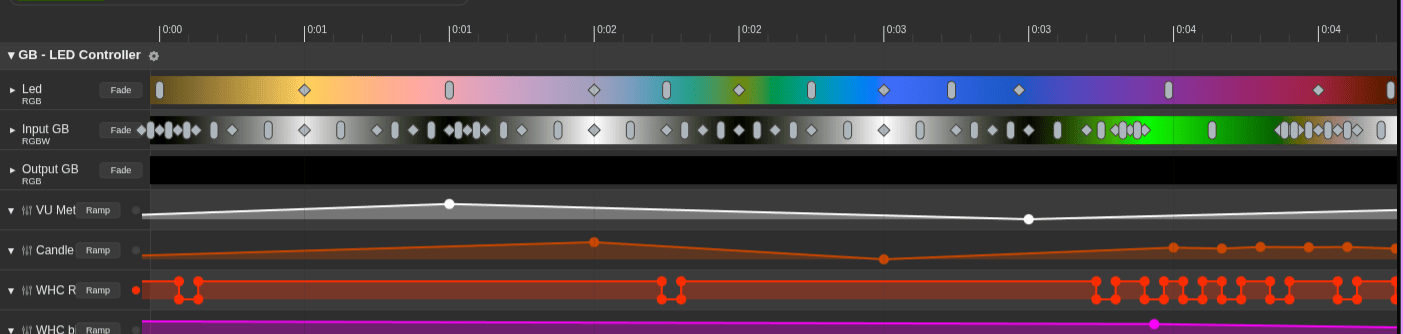
- Color groups for RGB / RGBW / RGBAW channels: pick a color once and drive the whole group together instead of juggling individual channels.
- Color stop authoring on the timeline: lay down color changes over time with selection, copy/paste, range templates, and multi-drag, just like the rest of the timeline.
- Smooth and natural transitions: color fades are calculated to give you the most natural color transitions.
- Easing and hard cuts: choose between eased transitions and instant snaps for sharp, punchy color hits.
- An Off button replaced the old brightness slider for clearer, more predictable control, plus reliable endpoint syncing and hex-code paste.
Real-time Collaboration
Working on the same studio as a teammate is now far less of a guessing game.

- Editor presence: see who currently has a show or rule open. No more stepping on each other's work without realizing it.
- Live editor sync: changes to a show or rule now propagate to everyone viewing it without a manual refresh. Open the same show in two tabs (or on two machines) and watch them stay in step.
- Edit-conflict protection: if two people edit the same show or rule at once, you get a heads-up, the latest version reloads, and your work is safe.
Media Improvements
One thing we have heard from many of our users is that making sure audio is IgorBox compatible can be tough. What's the difference between CBR and VBR mp3 files? What is 24bit vs 16bit audio? In the last release we made callouts to make sure you were aware if your audio was going to work. In this release, we improved it even more. We now process your audio on upload into a conforming format. Going forward, your uploaded audio files will work because we make sure they will work.
As an added feature here, we process beat and EQ information so that when you use our new Audio Aware Generators, they just work.
Audio Aware Generators
If you haven't used our generators, you are missing a super cool feature that lets us do the tedious stuff to give you a great head start. Things like candle flicker, light chases, random flashes, etc. In this release, we made them audio aware!
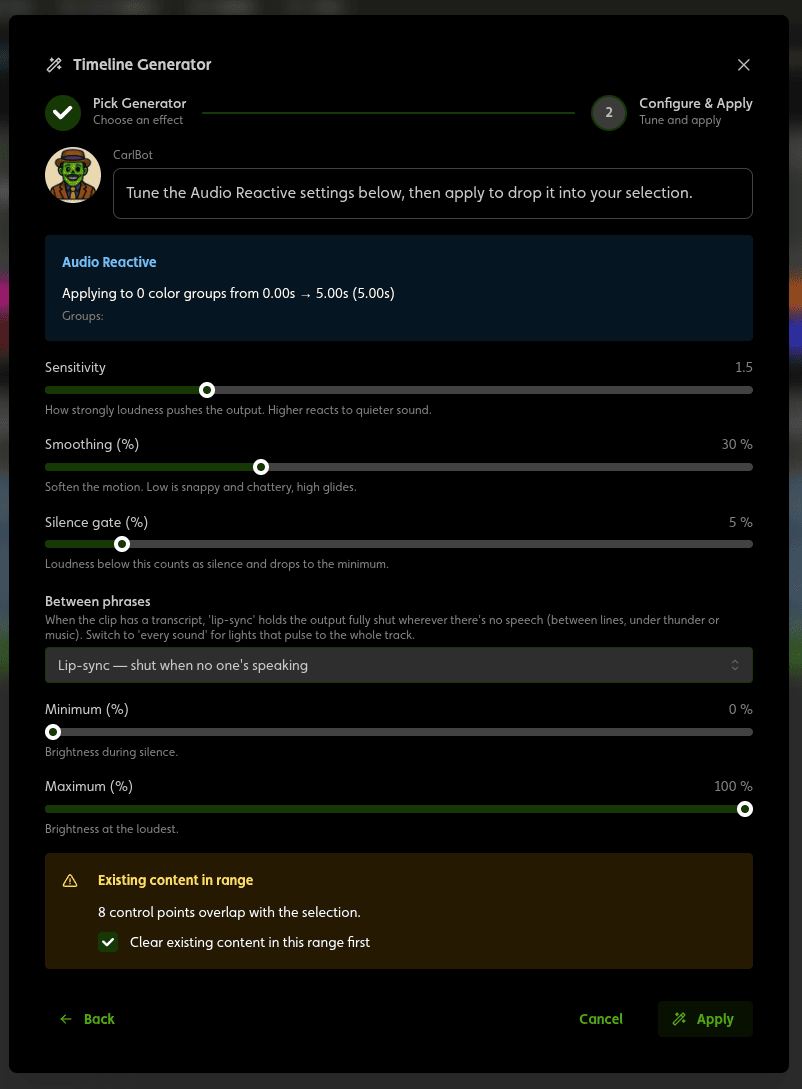
- Audio Reactive: You can use this generator to map intensity to sound. Things like moving a mouth to the audio, or time-aligning lighting flashes to thunder claps. With color groups, you can even map colors and transitions.
- Music Reactive: This works like audio reactive but it uses our audio analysis tools to map the reactions to EQ bands and is tuned to be more "beat aware".

Transcript Editor
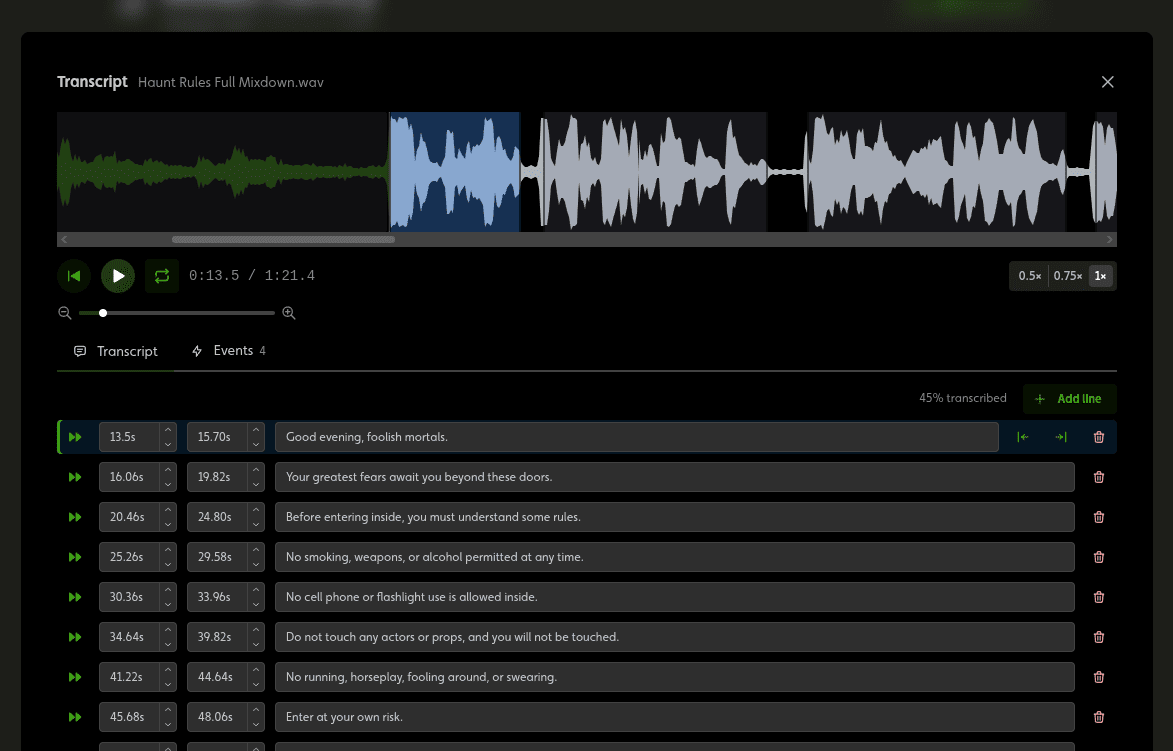
Audio is the backbone of a great scene, but lining your props up to it by ear is fiddly. Open any media file, click the three-dot menu, and choose Edit transcript to get a labeled, time-aligned map of your track. Add a transcript so you can see exactly where every word lands, or switch to the Events tab to mark key moments like a "Thunder crash" or a "Woman scream." With every word and sound pinned to the timeline, you can place cues to the precise moment instead of eyeballing the waveform. And with lip-sync mode, a mouth moves to the words, not to that scream between sentences.
Shows that Loop and Chain
Shows are no longer one and done. You can now build playback that runs the way a real attraction needs it to:
- Looping shows: flag a show to repeat continuously until something stops it. Perfect for ambient and idle states in escape room games.
- Show to show chaining: when one show finishes, automatically fire the next. Stitch a sequence of shows into a single experience without wiring up extra logic!
We also added deployed-state badges that update live in the editor, so you always know whether what you're looking at is the deployed version or an unsaved draft.
And, because a looping show will run until stopped or taken over, we added a handy little Stop Show button on all the controller pages next to Manual Control. This will stop a running show and return to ambient.
Built for Touch: iPad & iPhone
From day one of IgorBox, we want IgorBox studio to be mobile friendly and just as good for mobile as it is on desktop. The timeline editor and the rule editor are now genuinely usable on a touchscreen. This was a big one for on-site work where a laptop isn't always practical.
- Timeline: drag clips, grab clip handles, move control points, and resize track headers, all with your finger. Pinch-to-zoom and single-finger scrolling work as you'd expect.
- Rule editor: connect logic nodes port-to-port by touch. We made the nodes and ports for wire drawing much more mobile touch screen friendly.
Bring an iPad to the install and program right there in front of the props.
A Tighter Timeline Editor
Lots of smaller refinements that add up:
- Constrained loop region: define a loop window with draggable handles and a grayed out overlay showing exactly what's in and out.
- Resizable channel header column: drag the header column wider when you need room for long channel names.
- Control-point polish: nicer hover states and double-click value pickers for precise edits, plus cleaner envelope padding and fills.
- Step curves: control points could only ramp between values. A new Step curve holds a value flat and then snaps instantly to the next, so on/off channels and effects that should pop (rather than fade) behave exactly as you'd expect. Pick Ramp or Step per point, or set a default for the whole track.
Test and Control Your Hardware
On-site programming got a lot more cooperative.

- Live Preview & manual control now have an owner: when you're driving a controller live, the rest of your team can see who's at the wheel.
- Take over without dropping the session: grab control of a manual control session from another tab or teammate. Taking over hands you the reins.
- Status on the controller page: open a controller and you'll see a "Live Preview" badge when a preview is running, with a one-click Stop right there.
- Rock-solid keepalive: sessions no longer quietly time out when a tab is in the background, so a preview you left running is still running when you come back.
Studio-wide Quality of Life
- Announcement banners: a new site wide banner system lets us surface important notices (maintenance windows, new features, etc.) right at the top of the app.
- Cleaner navigation: Studio nav links moved to a dedicated sub-nav strip beneath the header, and long studio names are now capped and scaled so they never blow out the header layout.
- Dismissable status notifications: the "saving…" / status spinner is now a tidy, dismissable notification. We also consolidated the flood of controller acknowledgements into single, readable status updates instead of a stream of notification pop-ups. (Yes this annoyed us too)
That's the roundup. As always, these land continuously, so keep an eye on the new announcement banner for the highlights, and happy programming. 🎃