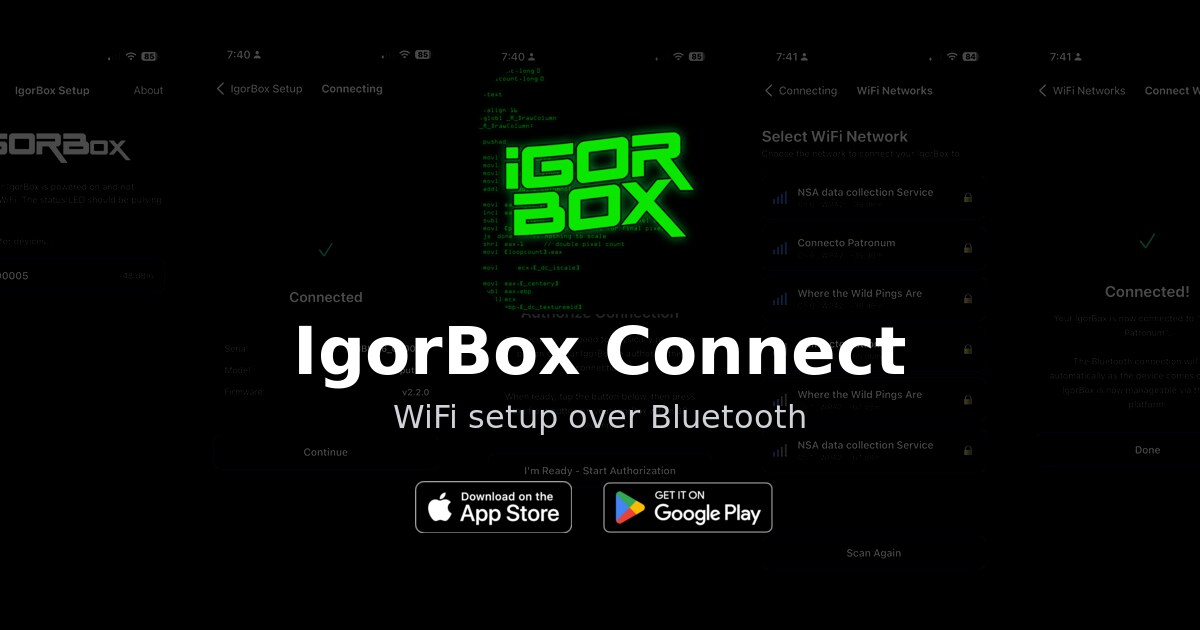
 Introducing IgorBox Connect

Some of the best feedback we get never shows up in a bug report. It comes from observing what happens at an install and watching someone on a ladder trying to plug an Ethernet cable into a controller that was only ever going to live on WiFi, just to get it online for the very first time.
Our Magic Provisioning system is pretty amazing and simplified configuring controllers and bringing them up in your Studio, but watching that happen made me realize we have to make this easier. Now we have! I am so happy to introduce IgorBox Connect, our new free app for iPhone and Android that sets up a controller's WiFi over Bluetooth. No cable. No laptop. No captive portal. Just your phone and the controller right in front of you.

The cable you no longer have to run
We built Magic Provisioning so adding a controller to your Studio is just a setup ID and one screen. It can set up WiFi too, but only once the controller is already online, which usually means plugging in Ethernet for that first boot. If you're running cable anyway, that's no trouble at all. But for a temporary cable strung across your venue it's kind of annoying. So was provisioning a stack of controllers back at the office and then carrying them out to the site and realizing you forgot to label which one was which.
IgorBox Connect makes it disappear. A brand-new controller, or one you have reset, with no network connection starts quietly advertising over Bluetooth. The app finds it, you prove you are standing right next to it, you pick your WiFi, and the controller joins. From there it's online and ready to connect to your Studio uplink.
How it works
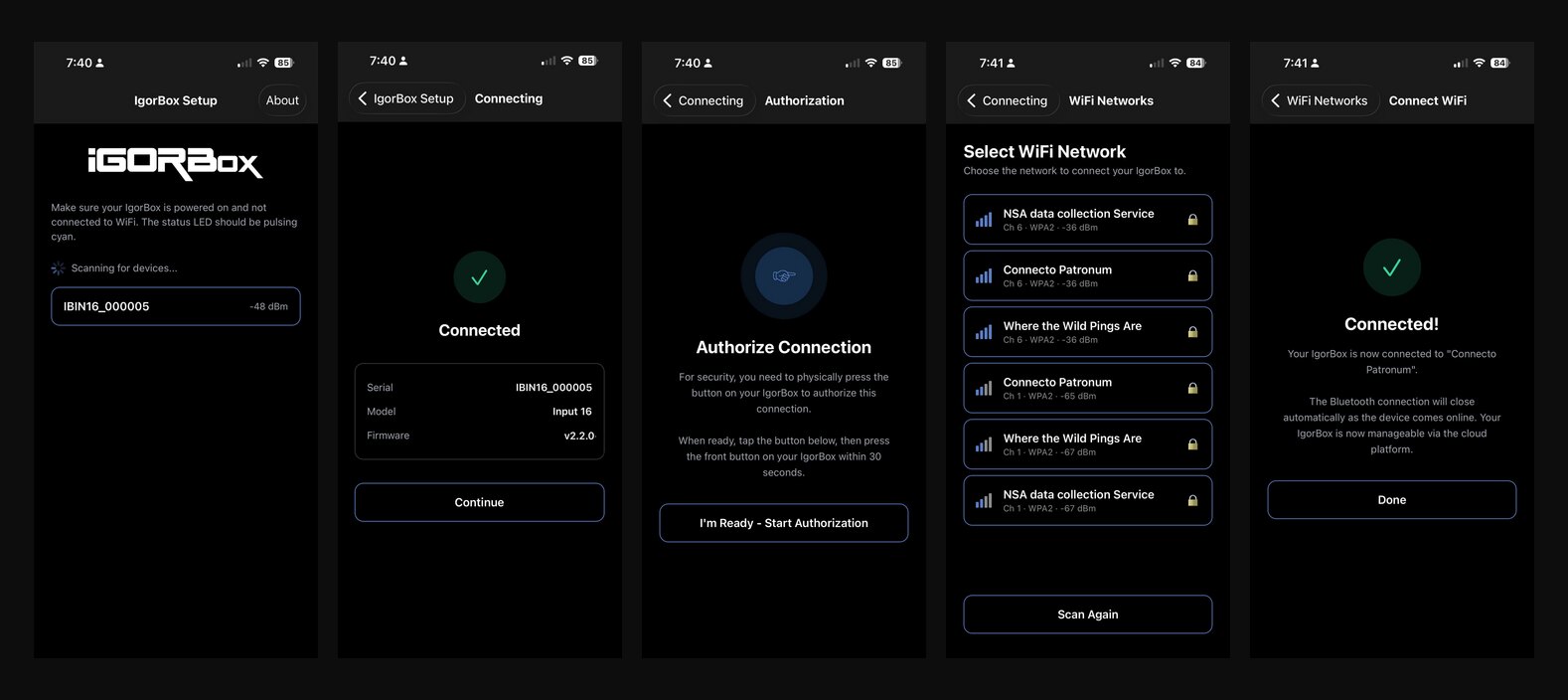
The whole thing takes about a minute:
- Find your controller. Open the app and it scans for nearby controllers in setup mode. Yours shows up by model and serial number.
- Connect and confirm. Tap it, and the app reads back the serial, model, and firmware so you know you have the right box.
- Authorize at the controller. This is the part I am proud of (more on it below).
- Pick your WiFi. The controller scans for networks and lists them with signal strength and security, strongest first.
- Done. Enter the password and the controller joins your WiFi. When it comes online, the Bluetooth connection closes on its own. That is your sign it worked.
A button press instead of a password
Here is the part I love. A controller waiting for setup has no network and no credentials yet, which is exactly the moment it would be easiest for the wrong person to get into. So before the app can change a single thing, the controller blinks its status LED blue and asks you to walk over and press the physical front button within 30 seconds.
It is a small thing that does a lot. It proves the person setting up WiFi is actually standing at the controller, not a curious guest who happened to open the app from across the room. No press, no setup. I would much rather ask you to tap one extra button than leave a controller in your attraction open to anyone nearby.
A status LED decoder in your pocket
While we were in there, we added something I wish I had carried around for years: an animated reference for every status LED state, matched to exactly what your controller does in the field. Blue pulse, green blink, the purple lockout, the red fault codes, all of it. The next time you are squinting at a controller in a dark hallway trying to remember what "slow blue pulse" means, it is right there in your hand. It links straight to the full Status LED guide too.
Try it
To the haunts and escape rooms who let us test this on real installs and told us how to improve things: thank you. This one is for you, and it is better because of you.
IgorBox Connect is free and live on both stores today. Download it, take it to your next install, and leave the cable in the bag. Then come tell us how it went on Discord. I read every note.
Let's make some magic. ✨