Lighting
Lighting tracks are how you build dimming cues for the LED Controller and any other dimmable hardware. (The Output 8 MKII's channels switch on and off rather than dim — those go on a relay track instead.)
Control points
A lighting track is defined by a series of control points. Each control point is a (time, value) pair. Between control points, the channel ramps smoothly from one value to the next — a control point at 2 seconds at 0% and another at 3 seconds at 100% gives you a 1-second linear ramp from off to full.
The track shows you the envelope as a filled area below a solid line, with a circle at each control point.
Endpoints
Every lighting track always has two endpoints:
- Start endpoint — at the very beginning of the show
- End endpoint — at the very end of the show
These endpoints can't be moved horizontally and can't be deleted. They're how the controller knows what value the channel starts and ends at.
By default, the two endpoints are linked — drag one and the other follows, so the start and end values match. This is what you want for an ambient routine that loops cleanly. To unlink, hold Ctrl while dragging an endpoint. To re-link them, double-click an endpoint to open its value editor and turn on Sync paired endpoint.
Adding a control point
Switch to the Draw tool. Click anywhere in the track area to place a control point at your cursor position. The horizontal position is grid-snapped; the vertical position is whatever you clicked at.
Click-and-hold to drag the control point you just placed — useful for fine adjustments before you commit. The creation and the drag count as a single undo step.
Editing a control point
In Select mode:
- Drag any control point to move it. Endpoints can only move vertically. Interior control points move both ways.
- Drag past a neighbor to reorder. The editor lets you drag a control point through its neighbors instead of clamping; the order updates as you cross.
- Double-click a control point to open its value editor and type an exact percentage. For an endpoint, turn on Sync paired endpoint there to keep both ends matched.
Ramp vs. step (hold)
By default the channel ramps smoothly from each control point to the next. For on/off effects — a fixed-speed strobe, a hard blackout — you want it to jump instead.

Double-click a control point to open its value editor. Under After this point, choose:
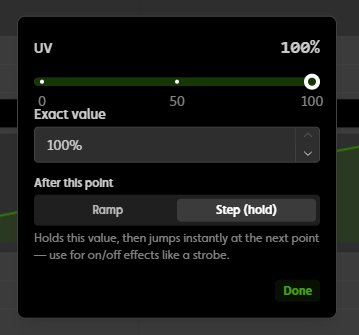
- Ramp — fade smoothly toward the next point's value (the default).
- Step (hold) — hold this value flat, then jump instantly to the next point's value.
The setting controls the segment leaving that point, so it isn't available on the very last point. Ramps are straight lines; there are no curve or easing handles on dimmer points. The ramp-or-step choice travels with a point through copy, paste, and templates.
Setting the default for a track. Each dimmer track's header has a small chip that reads Ramp or Step. Click it to flip. It sets what new points drawn or split on that track will use; points that already exist don't change. The chip is visible when the track isn't collapsed. There's no command to convert many selected points at once, so pick the track default before you draw a strobe or a blackout sequence.

Editing several at once
You can select multiple control points and drag them as a group:
- Ctrl+click to add control points to the selection one at a time.
- Click-and-drag in empty track area (Select mode) to draw a selection rectangle.
- Drag any selected control point and they all move together — even across multiple tracks.
This is how you'd shift a whole lighting cue's timing by a fraction of a second: select all the control points, drag them.
Deleting a control point
Two ways:
- Select mode + Delete/Backspace key — deletes selected control points.
- Remove tool + click a control point — deletes that one.
Endpoints can't be deleted. Move them instead.
Color
The dimming control points above set how bright a single channel is. Color is a separate layer for fixtures that mix red, green, and blue (plus white or amber) — like RGB / RGBW / RGBAW fixtures on the LED Controller. Instead of juggling the individual channels, you pick a color and Studio drives the whole group together.
Set up a color group first
Color lives on a color group — a Studio feature that ties several dimmable channels together so they're set as one. You build it in Studio:
- Open Color Groups in Studio.
- Click Add color group.
- Pick the Kind — RGB (3 channels), RGBW (4 channels), or RGBAW (5 channels).
- Assign each slot (Red, Green, Blue, and White / Amber where applicable) to one of the dimmable channels.
- Save.
You need at least three spare (ungrouped) dimmable channels to make a group. Once it exists, picking a color sets the values of all the tagged channels together. The group shows up in Manual Control as a single color picker, and as its own track on the timeline.
Author color on the timeline
A color group appears on the timeline as its own track — a gradient bar that shows the color over time (separate from the per-channel brightness envelopes).
- Add a color stop — switch to the Draw tool and click the gradient bar where you want the color to change. A diamond marker appears.
- Set the color — click the marker to open the color picker. Pick a swatch, or click Advanced for a full picker and a Hex field (paste a code like
#ff0000). - Select and move — Ctrl+click to select several stops and drag them together.
Between two color stops, the group fades smoothly from one color to the next — and the fade takes a natural path, so a red-to-blue crossfade looks like a crossfade instead of passing through muddy grey.
Fade vs. hard cut
Each segment between two stops has a small pill handle. Double-click it to open Transition to next color:
- Fade — a smooth crossfade to the next color. Drag the pill to bias the fade earlier or later.
- Cut — hold this color, then snap instantly to the next color at its stop. Use it for sharp, punchy color hits.
The pill snaps back to the centre of the segment when you drag it close. The group's header also has a Fade / Cut chip that sets the default for new stops on that group, the same way the Ramp / Step chip works on a dimmer track.
Endpoints and looping
Like lighting tracks, a color track has a start and end stop that can't be moved or deleted — only recolored. A Sync endpoints toggle keeps the first and last colors matched so a looping show doesn't visibly jump at the loop point.
Flashes and chases
Want a color to strobe or cycle? Switch to the Range tool, drag across a span of time, and apply a color generator (for example, a two-color flash at a beat rate). It fills the range with the effect — no stop-by-stop authoring.
Turning color off live
In Manual Control, a color group shows a color picker and an Off button that blacks the group out in one tap.
Tips
- For a smooth fade-in from black, drag the start endpoint to 0% and the next control point to your peak value.
- For a flat hold at full, set two control points at the same value with a time gap between them.
- For a sharp transition, put two control points very close together at different values.
- Loops should start and end at the same value, with the linked endpoints (the default). Otherwise you'll see a visible "snap" at the loop boundary.