DMX Tracks
Shows targeting an IgorBox DMX get tracks for its patched fixtures. If you've read Lighting, you already know most of this page: DMX dimming and color use the exact same envelopes, color tracks, and tools. What's new is states and pan/tilt.
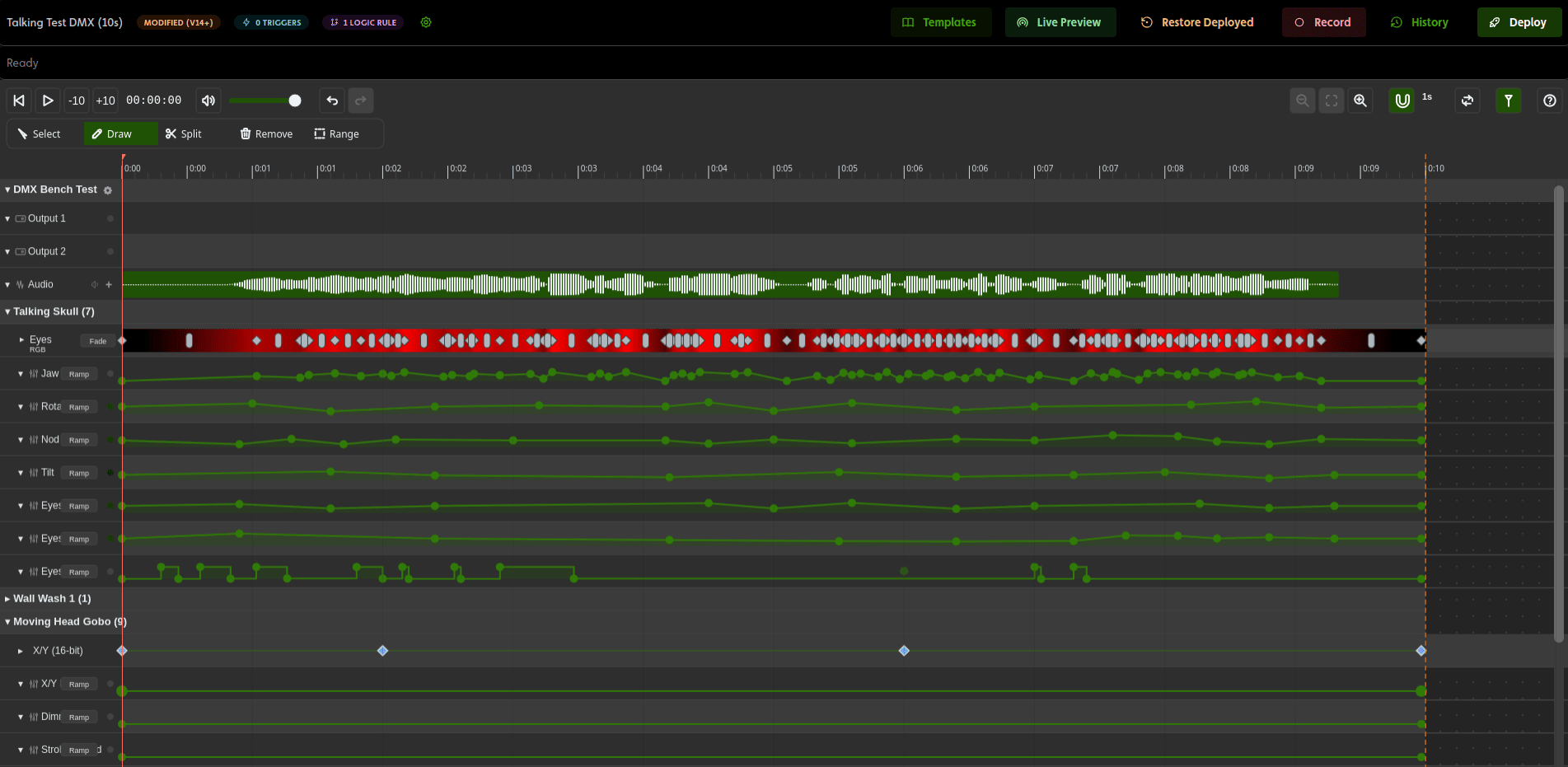
Fixtures appear by themselves
There's no "add DMX track" step. Every fixture patched on a targeted controller shows up in the editor as its own collapsible group under the controller, including fixtures with nothing on them yet. Expand a fixture's header and its channels appear as rows, named the way the profile names them (Dimmer, Gobo, Strobe…).
What kind of row each channel gets follows its channel kind:
| Channel | Row type |
|---|---|
| Intensity, proportional, or any other level-style channel | A lighting envelope: control points, 0–100%, identical to Lighting |
| Color channels in a color group | One color track per group, the same gradient bar from Lighting → Color |
| State (named ranges) | A state track of event clips |
| Pan + tilt | One X/Y track for the pair |
A few notes on the level-style rows: proportional channels author as ordinary 0–100% envelopes, and the percentage maps onto the channel's safe band, so the envelope can't ask for an out-of-range value. 16-bit channels are still a single row and a single envelope; the fine precision is handled automatically behind the scenes.
Color
A DMX fixture's color group behaves exactly like an LED color group: a gradient bar with color stops, smooth fades or hard cuts between them, synced endpoints for clean loops, and the same color generators (color sweep, two-color flash, rainbow wave, and friends) via the Range tool. It's all covered in Lighting → Color.
State tracks
A state channel is a mode selector; its named ranges pick gobos, color-wheel slots, built-in programs. On the timeline that becomes a track of event clips:
- The default state. A diamond at the start of the track shows what the channel does when no clip is active; it fills every gap between clips. Click it to choose from the fixture's named states (or Off).
- Drawing a clip. With the Draw tool, drag across the track. The state picker opens as soon as you release; choose the named state for that span. Between clips, the channel returns to the default.
- Editing. Clips move, resize, and collide like any other clip. Double-click a clip to pick a different state.

Ranges marked Proportional (slider in band), like strobe speed, get a bonus: the clip carries its own mini envelope inside, so you can ramp the speed over the clip's duration with ordinary control points.

Pan/tilt (X/Y) tracks
A moving head's pan and tilt channels pair into a single X/Y track. Each diamond on the track is a position cue: "be aimed here at this time." Between diamonds, the head sweeps smoothly from one position to the next.
- Add a position: Draw tool, click on the track. The position editor opens immediately.
- The position editor: a large 2D pad where you drag the handle to aim. Pan is left/right, tilt is up/down, with sliders below for one axis at a time (and fine controls on 16-bit fixtures). During Live Preview, the real fixture follows the pad as you drag, so you aim the actual light, not a number.
- Move in time: in Select mode, drag a diamond horizontally. (Its aim stays put; use the editor to change where it points.)
- Endpoints: like lighting tracks, the first and last diamonds are pinned to the show's start and end. Keep them linked (Sync paired endpoint in the editor) so looping shows don't snap at the wrap; the editor warns when the last diamond has drifted away from the first.

Give the head some intensity on its dimmer envelope first, start Live Preview, then place your position cues; a moving light you can see is a lot easier to aim.
Seeing it: Live Preview
The browser doesn't simulate DMX fixtures; there's no on-screen beam. DMX comes alive through Live Preview: while it's running, scrubbing and playback drive the real fixtures, position edits follow your cursor, and the show is exactly what your audience will get.
Generators
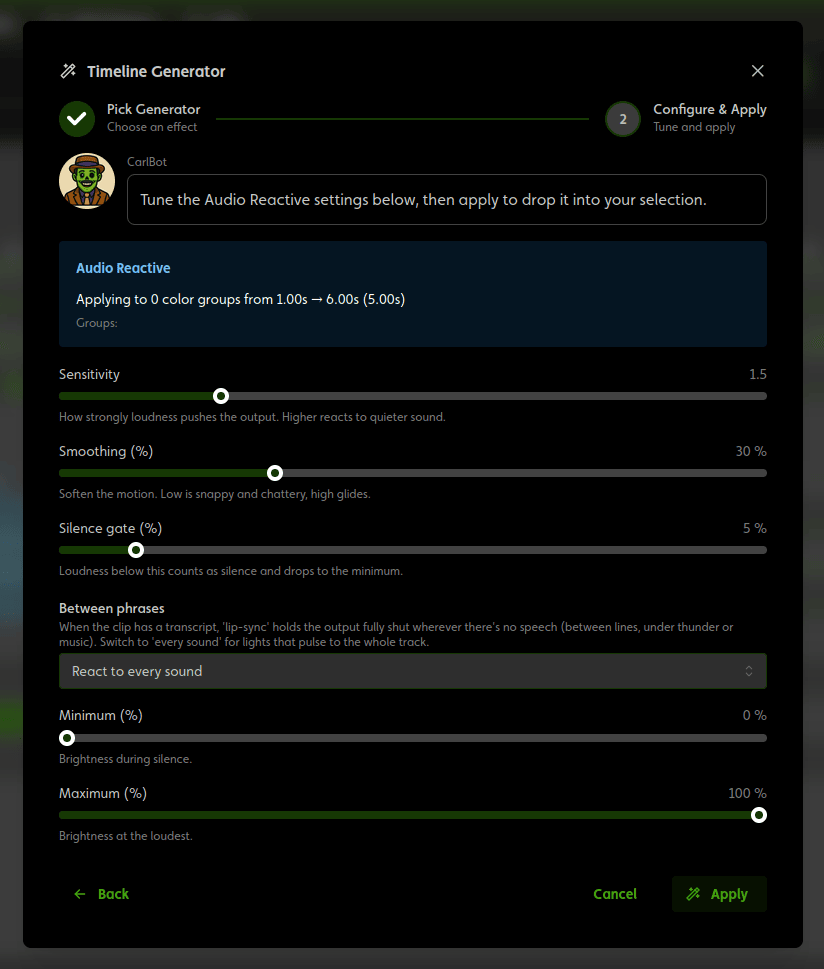
The effect generators don't care whether a channel is an LED Controller channel or a DMX dimmer: flicker, lightning, pulses, chases, and the color-group effects all apply to DMX rows the same way. (State and X/Y tracks don't take generators; author those directly.)
Deploying
Fixture channels resolve to real DMX addresses at deploy time, so shows survive re-addressing; redeploy and they line right back up.
Two things to keep in mind:
- The controller must be in Standard or Buffer mode for shows to reach the line. In Fixture mode the output is hardware-passthrough and the show's DMX simply doesn't play (see Operating Modes).
- Deleting a patched fixture doesn't break its shows; the orphaned tracks just stop reaching a light until you re-patch or clean them up.
Recording
Rather than drawing a show, you can capture one from a real lighting console; see Recording from a Console. The result lands on these same tracks, fully editable.