Preparation
Some equipment needs to stay on while a scene runs. Preparation gives you named controls such as Air Supply Valve or Spark Machine Heater that keep selected outputs at a set level through shows and show stops.
You set up each control once, then use Turn on and Release on the controller's Overview tab. You can also put it on a Trigger Board for your operators.
Preparation requires firmware 2.2.3 or later on a supported controller with outputs. It works with eligible on/off, dimmable, and DMX outputs on that controller. Sensor inputs cannot be used.
Create a Preparation control
- Open Controllers, choose the controller connected to the equipment, and select Configuration.
- Expand Preparation, below Channel Configuration and above Prop Rig.
- Click Add control and enter a Control name your team will recognize.
- Choose the Output connected to the equipment.
- Set Hold at to the level you want to keep, and Release to to the level to use when you release it.
- To operate several outputs together, click Add output and set the levels for each one. All outputs must belong to this controller.
- Click Save control and wait for the controller to finish applying the setup.
Saving does not turn the outputs on. Use the control on Overview when you are ready to operate the equipment.
| Output type | Values to choose |
|---|---|
| On/off output | On or Off for both settings. |
| Dimmable output (PWM) | A level from 0–100%. |
| DMX output | A DMX channel from 1–512, then values from 0–255. Use the equipment's DMX chart to choose the correct channel and values. |
If an output is already assigned to another deployed hold, Studio prevents a conflicting setup. Check the existing Preparation control or Logic Rule before choosing that output again.
Turn it on and release it
Open the controller's Overview tab and find Preparation. This section appears when a control has been created and the controller is online.
- Click Turn on to keep the selected outputs at their Hold at levels. Wait for the controller's confirmation.
- Click Release to end the hold and apply the Release to levels. Shows can control those outputs again after release.
The status updates automatically. You do not need to reload the page.
| Status | What it means |
|---|---|
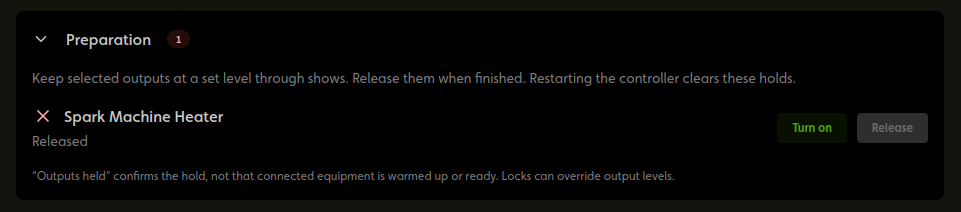
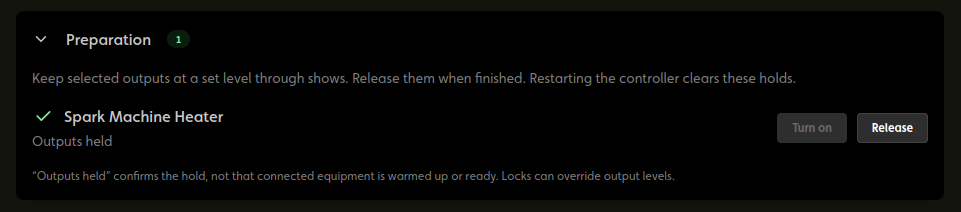
| Outputs held | All outputs in this control are confirmed held. The item shows a green check. |
| Released | The outputs are no longer held by the control. |
| Some outputs held | Only part of a control with multiple outputs is held. Check the equipment before continuing. |
| Hold status unknown | Studio cannot confirm the hold state. Check the controller's connection and wait for a fresh status. |
| Waiting for controller confirmation | The request has been sent, but the controller has not confirmed the result yet. |
A red X means the control is not confirmed fully on; it does not always mean every output is off. The section's badge turns green only when every Preparation control is confirmed on.
Outputs held confirms the output hold. It does not measure air pressure or confirm that a heater has finished warming up. Check the equipment's own indicators and follow its operating instructions before running the effect.
Example: Air Supply Valve
Choose the controller's on/off output connected to your valve. Name the control Air Supply Valve, set Hold at to On, and Release to to Off. Save and wait for setup to finish.
On Overview, click Turn on. The valve output stays on while shows start, play, and stop. When you are finished, click Release to return it to the configured off level and let shows control that output again.
The green check confirms the output is held on. Check your air-pressure gauge separately.
Example: Spark Machine Heater
Use the machine's DMX chart to find its heater channel and the values that enable and disable heating. On the connected DMX controller, create Spark Machine Heater, choose the appropriate DMX channel, and enter those values for Hold at and Release to. Values vary between machines; do not assume that 255 turns every heater on or that 0 turns it off.
Save the control, wait for setup, then click Turn on from Overview. The heater channel stays at the chosen level through shows. Other channels that are not held remain available to your shows.
Check the machine's own ready indicator before running the effect. The Preparation checkmark does not confirm that heating is complete.
Put the control on a Trigger Board
Once the Preparation control has been saved and applied to its controller:
- Open the Trigger Board editor and add a button.
- Choose Toggle preparation · [name] · [controller] as its action.
- Give the button a clear label and color, then Publish changes.
On the live board, tapping a released control turns it on. Tapping a fully or partly held control releases it. The button shows On, Off, Partly on, or an unknown state, and waits for confirmation after a press. A green check means all its outputs are confirmed held; a red X means they are not. Toggling is unavailable while the state is unknown.
If two operators both press to turn a control on, the second request does not turn it back off. The same applies when both request Release: a request that is already satisfied leaves the control as it is.
Trigger Boards require Builder or above. The board's normal sharing permissions apply, so viewers and guests with access to the board can use its Preparation buttons. A checkmark still confirms the hold, not equipment readiness.
What happens during shows or a lost connection?
- Shows and show stops: held outputs stay at their set levels. Stopping a show does not release Preparation.
- Closing Studio or losing the network: active holds continue on the controller. You need internet access to send Turn on or Release from Studio.
- Restarting or losing power: holds are cleared. They do not turn themselves back on after reconnecting. Check the equipment and turn on the controls you need again.
- Manual Control: you cannot turn on Preparation during a Manual Control session. An output already held cannot be changed using Manual Control; release it first if you need to test it by hand.
- Locks and startup: you cannot turn on Preparation while the controller is locked or starting up. Locks can override output levels. Releasing a hold does not guarantee a physical output change while another control, such as a lock, overrides it.
Edit or delete a control
First use Release on Overview and wait until the outputs are confirmed released. Then return to Configuration → Preparation to edit or delete the control. Manage Preparation controls here; they cannot be changed through the Logic Rules editor. Deleting asks for confirmation. If the status is unknown or any outputs are still held, resolve that before changing the setup.
Viewers can inspect Preparation. Editors, admins, and owners can create, edit, delete, turn on, and release controls. See Members & Roles.