Troubleshooting Triggers
If a sensor starts a show on one controller but not another, check the sensor, the controller that should play the show, and the connection between them. In the steps below, the sender is the controller with the sensor; the receiver is the controller or controllers that should respond. A controller can be online in IgorBox Studio without receiving triggers from another controller on your local network.
The new trigger diagnostics need firmware 2.2.2 on the controllers providing the reports. Older controllers can still run their existing triggers, but may not appear in diagnostic results.
Start with the input and show
- On the source controller's Overview tab, watch the input while someone activates the sensor. It should change between IDLE and TRIGGERED. You do not need Manual Control to watch it.
- Check Normally closed and Cooldown. The sensor can visibly change during cooldown without firing another show.
- Confirm the show is deployed, and check which input and On/Off action its Trigger uses.
- Check that the controllers are not locked or in Manual Control or Live Preview. Check the trigger's Retrigger setting and whether the receiving controller is already playing a show protected from interruption.
To test the input from your browser, use Direct Trigger. It can run real shows and effects. Use the reach test below when you only want to check communication.
Check which controllers hear the source
- Open the source controller, where the sensor is connected.
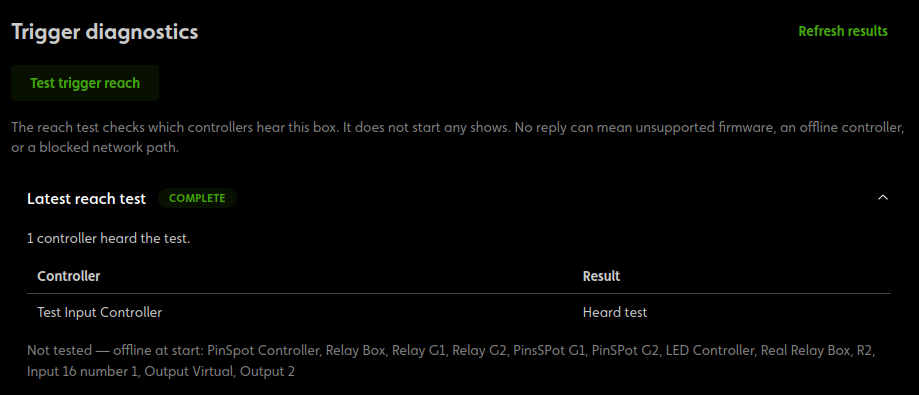
- Select Troubleshooting, then Test trigger reach under Trigger diagnostics.
- Expand Latest reach test and wait for it to finish collecting responses. Results update automatically.
- Find the controller that should receive this input.
Heard test means the receiver reported hearing this test. No response received can mean an unsupported firmware version, an offline controller, or a connection problem between the controllers. Controllers offline when the test began are listed separately as Not tested. If results fail to refresh, check your connection and click Refresh results.
The reach test does not start shows. A successful test checks communication at that moment; it does not prove that a show is deployed or that a trigger is configured correctly. Testing A to B also does not prove B can reach A.
Viewers, editors, admins, and owners can inspect the results. Editors, admins, and owners can run a test when the controller is online and supports it.
Check the connections your shows use
Open Controllers → Trigger delivery to see communication between controllers. Start with Needs attention, or choose Expected to see the connections your shows and rules depend on. Search by controller name to narrow the list.
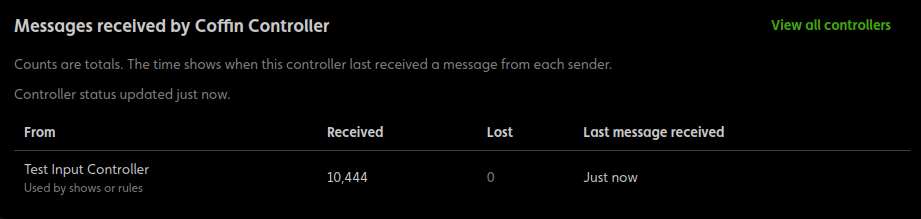
Each row goes from a sender to a receiver. Two independent scenes do not need every controller to hear every other controller. All paths includes other observed connections; those are not treated as failures just because no show or rule uses them.
| Result | What to check |
|---|---|
| No messages received | The controller that should respond has not reported hearing the sender. Check both controllers and run a reach test from the sender. |
| Loss reported | Some messages did not arrive. Check the receiving controller's Events tab and the connection between the controllers. The lost-message count is not a count of failed shows. |
| No report yet or Report out of date | Wait for a fresh controller report and refresh. Missing or old information does not prove the connection failed. |
| Observed only | The controllers have heard each other, but no known show or rule needs this connection. |
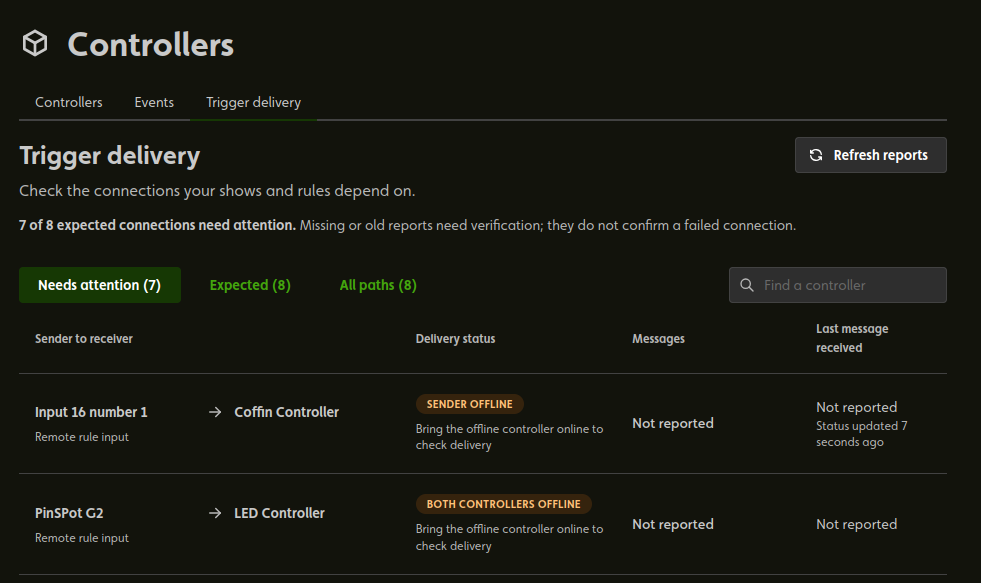
For one receiving controller, Troubleshooting → Messages received by… shows incoming senders and when each was last heard. Pay attention to Used by shows or rules, the last-message time, and when the controller's status was updated. The numbers include earlier activity, not just the latest test.

Read the trigger events
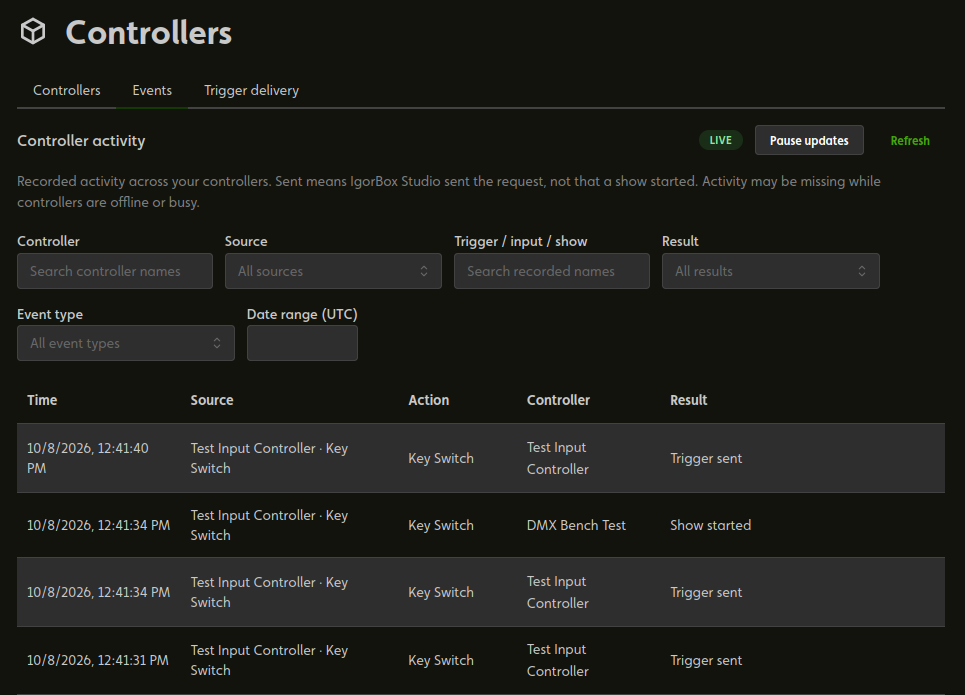
Open Controllers → Events to see activity across your Studio, or open one controller's Events tab to focus on that controller. The table shows Time, Source, Action, Controller, and Result.
Start with the controller and approximate time of the problem. Narrow the list using Source, Trigger / input / show, Result, or Event type. The Controller name filter is available in the Studio-wide view. Date range (UTC) uses UTC, so account for your local time zone. For input messages, choose Trigger sent / received under Event type.
The list updates automatically. Use Pause updates to read without new activity moving the list, Resume updates to follow live activity again, or Refresh to check now. Browsing older pages pauses live updates. Your filters stay in place.
Understand the result
A request being sent or received does not prove that a show played. Look for the controller's result:
| Result | Meaning or next step |
|---|---|
| Sent or Trigger sent | The request or trigger was sent. A later result appears in a separate row. |
| Not sent | The request was not sent. Read the explanation and check the controller before trying again. |
| Input trigger accepted | The controller accepted the input test. Check the connected show's result separately. |
| Received | The controller received the request; this does not confirm playback. |
| Show started | The controller started the show. |
| Show already playing | The trigger was skipped because the show was already playing. Check its Retrigger setting. |
| Blocked by protected show | A protected show blocked a trigger or Logic Rule from interrupting it. |
| Controller locked | The lock blocked the action. It will not run later when the controller unlocks. |
| Replaced by a newer command | Another command replaced this one before it started. |
| Show is not on the controller | Deploy the show to that controller, then try again. |
| Show could not start | The controller could not start playback. Read the explanation and check the show and controller. |
| Received late or Messages missed | Some trigger activity was delayed or missed. Check what actually played before trying again. |
Sent remains a record of the original request, even after a result arrives. It does not mean the request is still waiting. If Events says some activity records were omitted, the list is incomplete; that does not mean those triggers failed. Activity while the controller was offline may also be missing.
Board buttons and webhooks
Choose Trigger Board or Webhook under Source, then search for the button or trigger name. Board entries name the board and button. All three board actions are recorded: firing a physical input, firing a Virtual Input, and playing a show.
Firmware 2.2.2 adds controller results to help you check what happened after the request. Received confirms receipt, not playback. For an input that runs shows on other controllers, check those controllers' rows too; they may name the sending controller and input rather than the board button.
Shows started by a Logic Rule
Choose Logic Rule under Source. When a rule tries to start a show directly, the entry names the rule and show and reports whether it started or was blocked. If a rule or show is no longer available, its name may be shown as unknown.
Shows played from Studio or a board
Pressing play in Studio, or using a board's play-show button, can interrupt a show marked Prevent triggers from interrupting this show. That setting protects against triggers and rules. Playback can still be refused while the controller is locked or not ready, or fail if the show is unavailable.
Replaced by a newer command means the earlier command was replaced before it began. Pressing twice quickly does not guarantee that the first show never started; check the recorded results before trying again.
Stop a show without cycling power
Click Stop Show on the controller's Overview or Shows tab. If an ambient routine is set, it resumes after the show stops. You can also use the front button in Stop mode. See Stopping a show for the full behavior.
When to contact support
If an expected receiver still does not hear its sender, contact IgorBox support with the controller names, input and show names, approximate time of the failure, firmware versions, and reach-test results. Include whether each controller is on Ethernet or WiFi.