Trigger Boards
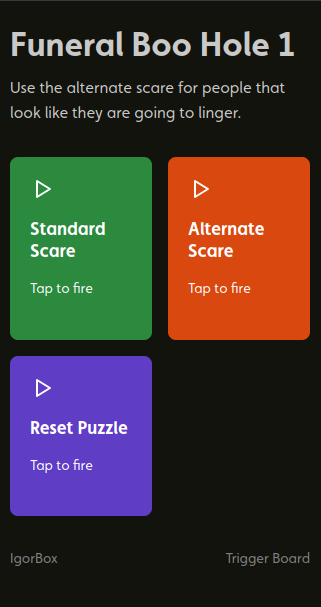
A Trigger Board gives an actor or scene its own page of buttons. Name each button for the job it does, such as Start scene, Give hint, or Reset game, then share the board on a phone, tablet, or computer. Actors see the labels and colors you choose.
Trigger Boards require Builder or above. Editors, admins, and owners can create and manage boards. Any Studio member, including a viewer, can operate a board shared with members. Guests can use a board shared through a secret link or a link and PIN.
The device displaying the board and the target controller both need internet access. Board presses are not saved for later if a controller is offline.
Create a board
- Open Trigger Boards in Studio and click Create board.
- Enter a Board name and optional Actor or scene instructions.
- Click Add button, enter its Button label, and choose an Action.
- Pick a color and Normal or Full row width. Use the arrow controls to reorder buttons.
- Check the Preview, then click Save draft or Publish changes.
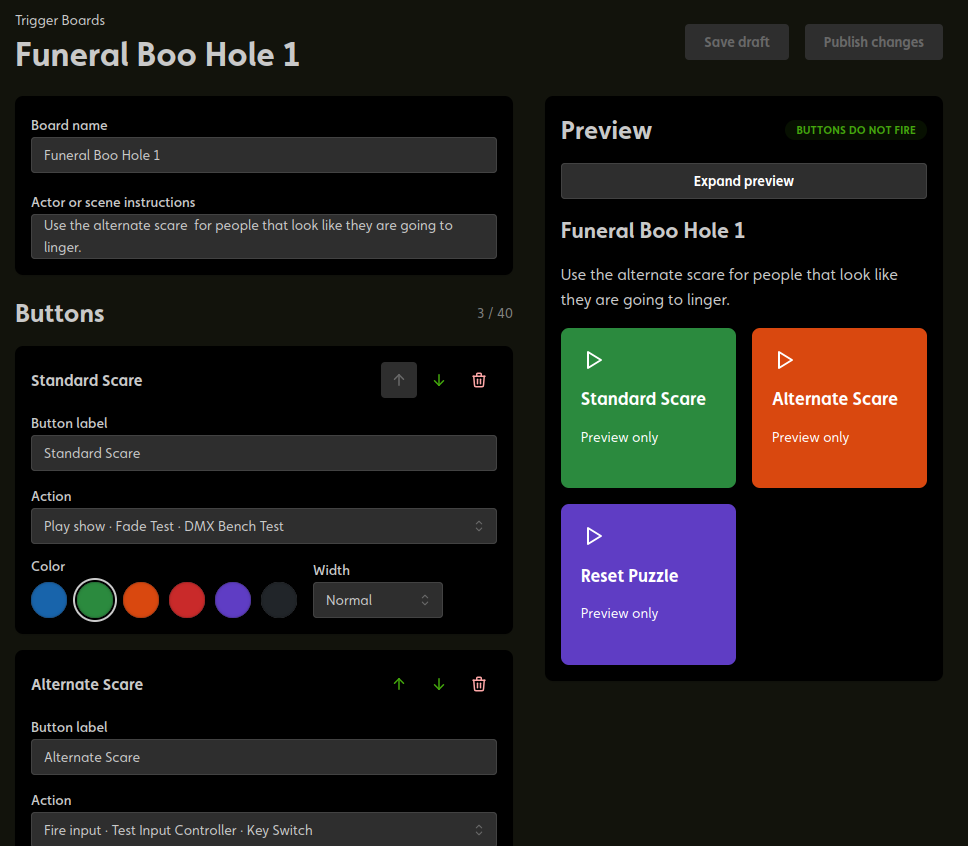
A board can contain up to 40 buttons but we suggest keeping the buttons to a minimum and just making more specialized boards. Preview buttons do not fire anything, including in Expand preview. Saving a draft leaves the live board unchanged. Publishing updates the board's buttons; actors with an older layout open are asked to load the updated buttons.
New boards start disabled. Publish at least one valid button, then turn on Enabled under Access & sharing when the board is ready to use.
Choose what a button does
| Action | What to prepare |
|---|---|
| Fire a connected physical input | Connect the input to a show or deployed rule. The controller must support remote input testing. Lock inputs cannot be fired this way. |
| Play a show | Deploy the show to the controller you select. |
| Fire virtual input | Add a named Virtual Input to a Logic Rule, connect its Pulse output, and deploy the rule. |
| Toggle preparation | Create a Preparation control and wait for its setup to reach the controller. Requires firmware 2.2.3 or later on a supported output controller. |
For example, name a Virtual Input Reset game, connect it to your reset action in the rule, and deploy. In the board editor, choose Fire virtual input · Reset game · [rule name] · [controller]. Give the actor's button a friendly label; the actor does not need to know the rule's setup.
Virtual Inputs do not require a firmware update. Physical-input testing needs a controller that supports Direct Trigger. Before testing an input, end Manual Control, unlock the controller, and wait for any cooldown or settings update to finish.
Preparation buttons
Choose Toggle preparation · [name] · [controller], give the button a clear label and color, then publish. On the live board, tap to turn on a released control or release a fully or partly held one.
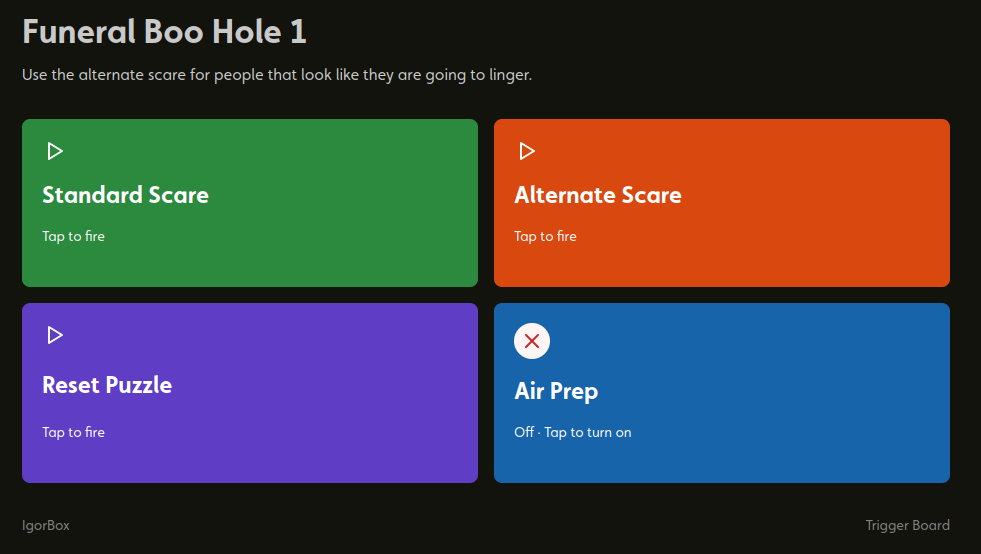
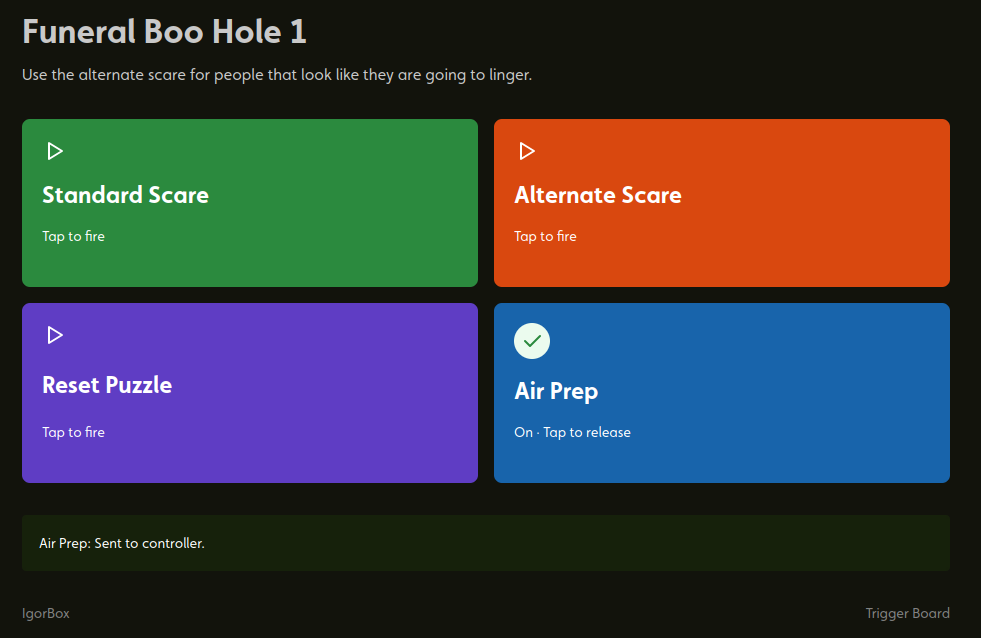
The button shows On, Off, Partly on, or an unknown state. A green check confirms all its outputs are held; a red X means they are not confirmed fully on. Wait for confirmation after pressing. You cannot toggle while the state is unknown.
If two operators request the same action, the second request does not undo the first. For example, two requests to turn a control on leave it on.
A green check does not confirm that a heater is warm or that air pressure is sufficient. See Preparation for setup, examples, and what happens after a restart or lost connection.
Share a board
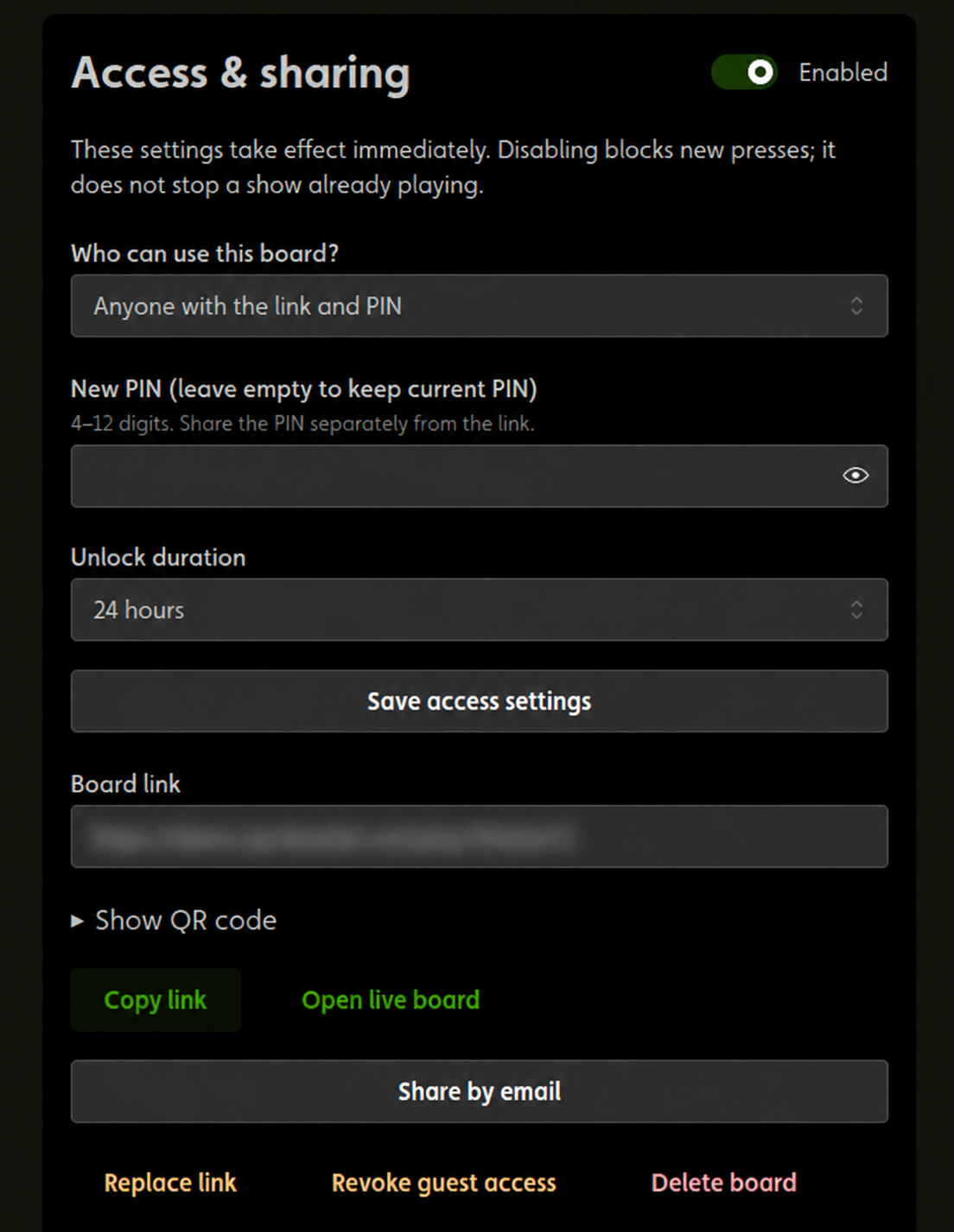
Under Access & sharing, choose Who can use this board?, then click Save access settings.
| Access | Who can open and operate it |
|---|---|
| Studio members (viewer and above) | Signed-in members of your Studio. This is the default. |
| Anyone with the link and PIN | Guests with the board link and its PIN. |
| Anyone with the secret link | Anyone holding the link. Treat it as access to the board's effects. |
For PIN access, set a 4–12 digit PIN and an Unlock duration of 1, 4, 12, or 24 hours. The default is 24 hours from unlocking; using the board does not extend that time. Share the PIN separately from the link.
Click Share beside a board in the Trigger Boards list, or use the sharing controls in its editor.
- Copy link gives you a link to send to the actor.
- Share by email lets you enter an Email address and a Message (optional), then click Send email. Studio sends the invitation. Publish and enable the board first, and share its PIN separately.
- The QR code opens the board when scanned. Use Download PNG to save an image, or Print QR code to make a sheet for the scene.
Open live board opens the working board, whose buttons can run real effects.
Saving access settings takes effect without publishing your button edits. Replace link stops the old link from working, including for people who already have the board open. Revoke guest access makes PIN users unlock again; for a board shared by secret link, it replaces the link.
Use the board during a scene
Open the link, sign in or enter the PIN if required, and press the named button. Read the result before pressing again.
Sent means Studio sent your button press to the controller. It does not confirm that a show started or a physical effect moved. If the result is uncertain, check the controller or effect before retrying; the board does not automatically retry an uncertain command.
For Virtual Inputs, a controller in Manual Control, locked, or still starting up ignores the press. It does not run the action later. Check the controller’s Events tab for the board and button name. Physical-input, Virtual Input, and play-show actions are recorded; firmware 2.2.2 adds controller results. Received does not confirm that the show played.
If a button becomes unavailable, ask the person who set up the board to check its show or rule and make sure the controller is online. Changes to a Virtual Input in an unpublished rule do not update a live board's action.
Ask CarlBot for help
CarlBot can help you find, create, and manage boards, choose available actions, and check Trigger delivery. Ask for a task such as “Make a board for the coffin room actor.” Your role and plan still determine what you can do.
CarlBot asks for confirmation before changing a board, revealing its sharing link, or pressing a button. A button press can run real effects; Sent still does not confirm that the effect ran. Supported connected AI assistants can help with these tasks too.
Disable or retire a board
Turn off Enabled to block new presses. Disabling a board does not stop a show already playing or release active Preparation holds. Release Preparation from the controller’s Overview tab when needed. Use the controller's Stop Show control if playback must stop too. Actors opening a disabled board are told to contact their Studio admin.
Moving to the Free plan disables existing boards without deleting them. After upgrading, an editor must enable them again. Use Edit & share to revise a board, or delete it when it is no longer needed; its old link stops working.