Prop Rigging
A Prop Rig describes how each prop on a controller physically moves: what it is (a jaw, an eye, a head turn), how far it can safely travel, whether the channel runs backwards, how long it takes to move, and how hard it can be fired. IgorBox Studio uses that description whenever motion is generated for the prop, by a timeline generator or by CarlBot animating from audio, so the motion lands on cue and stays inside what the hardware can take.
It's the difference between "channel 3" and "channel 3 is the skull's jaw, it only travels 20 to 80 percent, and the cylinder takes half a second to open." The rig is where that second sentence lives.
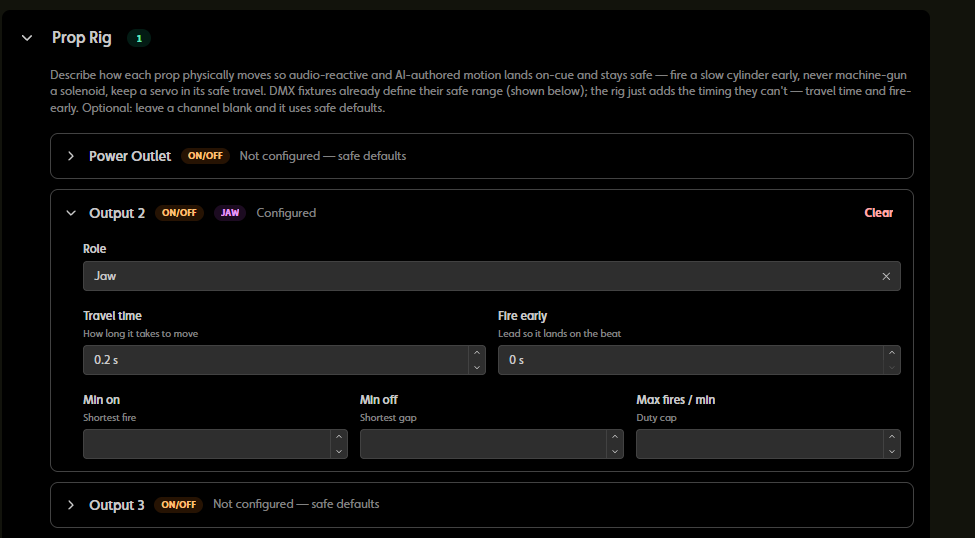
Where to find it
Open a controller, go to the Configuration tab, and expand Prop Rig. The section appears whenever the controller has outputs that can be rigged (on/off or dimmer outputs, or patched DMX fixtures). The badge on the header shows how many channels are configured.
Editors, Admins, and Owners can change the rig. Changes are saved with the same Save and Discard bar as the rest of the Configuration tab, and can't be saved while the controller is locked.
Every channel starts as Not configured, which means safe defaults. You only need to fill in the channels that move something. Clear on a row puts it back to defaults.
What a rig entry holds
Each channel gets one entry.
Role. What the channel moves: Jaw, Eyes, Head, Neck, Chest, Torso, Arm, Hand, Leg, Wing, Tail, Dimmer, or Other with a name of your own.
Custom name. An optional label such as "Index Finger" or "Front Door," so the prop can be choreographed by name.
Axis. For Head, Neck, and Eyes, which way the channel moves: Pan (rotate or turn), Nod (up and down), or Tilt (ear to shoulder).
A prop with more than one moving part is more than one entry. Left and right eyes are two entries. A three-axis head is three entries, all with the Head role and a different axis each. Color groups aren't rigged; the rig is about motion.
Settings by output type
On/off outputs (relays, solenoids, cylinders)
| Setting | What it means |
|---|---|
| Travel time | How long the prop takes to move, in seconds. Measure it with Time it (below). |
| Fire early | Lead time, in seconds, so a slow prop lands on the beat instead of after it. |
| Min on | The shortest fire. Defaults to 0.2 seconds, or the travel time if you've set one. |
| Min off | The shortest gap between fires. Defaults to 0.25 seconds; fires closer together than this merge into one. |
| Max fires / min | A duty cap so a solenoid is never machine-gunned. |
Dimmer outputs
| Setting | What it means |
|---|---|
| Safe travel range | A minimum and maximum percentage. Generated motion stays inside this band, so a motor or a proportional prop never gets driven past what it can take. |
| Reverse direction | For an active-low channel, where 0% drives the prop to full. |
| Travel time | How long the prop takes to move end to end, in seconds. |
DMX fixtures
On a controller with patched DMX fixtures, the rig rows for a fixture's intensity, pan, tilt, and proportional channels are shorter: just Role, Travel time, and Fire early. The safe range is shown read-only, because it comes from the fixture's profile and patch, and there are no minimum on, minimum off, or fires-per-minute settings, because those exist to protect relays and solenoids, not fixtures. The rig only adds the timing the fixture definition can't know: how long the fixture takes to get there, and how early to send it.
Time it
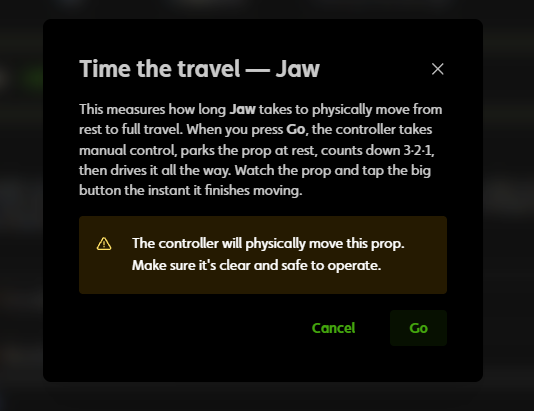
You don't have to guess travel time. With the controller online and unlocked, click Time it on a row. IgorBox Studio warns that the controller will physically move the prop, so make sure it's clear and safe, then click Go. Watch the prop, click It reached the end! the moment it arrives, and click Save travel time. Time it briefly takes manual control of the channel to do this; nothing else changes.
How the rig is used
The rig comes into play whenever motion is generated for a rigged channel: when you apply a timeline generator to it, and when CarlBot animates a prop from audio (a jaw or a light from a voice track, or a relay or pneumatic on the loud hits). In both cases the motion stays inside the safe travel range, the channel is reversed if you've said to, fires land early by the lead time you set, and the minimum on and off times and the fires-per-minute cap are respected.
The roles and names are stored with the rig and CarlBot can read them, but name the channel clearly as well ("Skull Jaw," not "PWM 3"). CarlBot finds props by their channel names and by what you tell it, and uses the rig to drive them safely.
If a prop isn't rigged, CarlBot doesn't refuse. It uses safe defaults and the channel names, and may ask you which channel is which.
The rig lives in IgorBox Studio only. The controller never sees it, and it doesn't change Logic Rules, Manual Control, or Live Preview. Hand edits on the timeline aren't limited by it either; it's there for generated motion.
Where to next
- Talking props with CarlBot: what CarlBot does with a rigged jaw and a transcribed voice track.
- Tips and Tricks: the other things that help CarlBot do good work.
- Generators: the timeline's own effects, including the audio-reactive ones.