Patching Fixtures
Patching is telling IgorBox Studio what's plugged into a controller's DMX chain: which fixture, at which address, under what name. Everything DMX-related on a controller lives in one place: the controller's Configuration tab → DMX section.
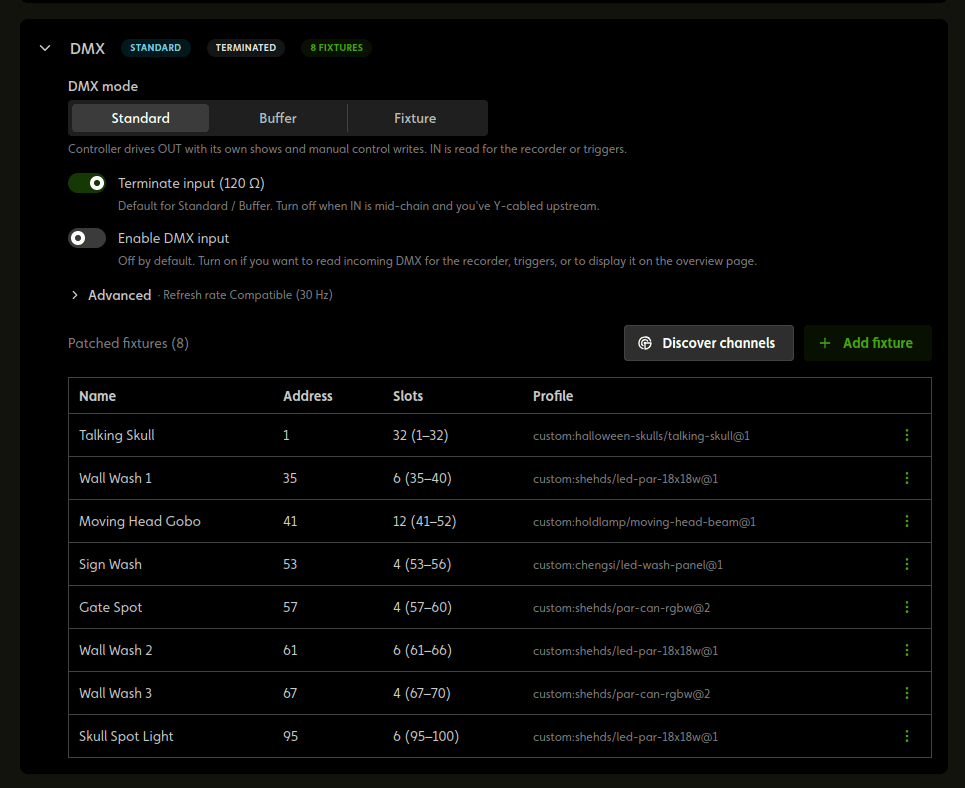
The section's header always shows the essentials at a glance: the operating mode, whether the input terminator is on, and how many fixtures are patched.
Controller settings
Operating mode
A three-way switch: Standard, Buffer, or Fixture. What the modes mean, and which one your rig wants, is covered in Operating Modes. In short: Standard when the IgorBox owns the universe, Buffer to overlay your cues on an existing console's signal, Fixture to sit silently in someone else's chain as a listener.
Switching modes is never destructive: moving to Fixture mode hides the fixture patch (nothing can drive the output in passthrough), but the patch is kept and comes right back when you return to Standard or Buffer.
Input termination
The Terminate input (120 Ω) switch controls the built-in terminator on the DMX-in port. The Studio defaults it sensibly per mode (on for Standard/Buffer, off for Fixture, which sits mid-chain) and warns you before lifting it in Standard or Buffer, because doing so means you must Y-split the incoming signal upstream yourself. See Termination for the wiring story.
If you plug the end of your chain into the input when in Standard mode, the input is a free terminator. Since DMX input and DMX output on the IgorBox are isolated, looping your DMX chain back into the input is safe and an easy way to terminate without a terminator plug.
DMX input
In Standard mode, reading the DMX-in port is off by default; flip Enable DMX input on if you want incoming DMX for triggers, monitoring, or the recorder. Buffer and Fixture modes always listen; the switch only exists in Standard.
Refresh rate
Under Advanced, the refresh rate picker sets how fast the controller repeats the universe:
| Tier | When to use it |
|---|---|
| Standard (44 Hz) | DMX-512 spec maximum. Modern moving heads, professional LED, color mixing. |
| Compatible (30 Hz) | The default. Matches video frame rate; works for nearly every consumer/architectural fixture. |
| Slow (20 Hz) | Halloween/prop/animatronic gear, hobby-grade DIY fixtures with slow microcontrollers. |
| Very Slow (10 Hz) | Last resort: fixtures with truly bad firmware, or extreme cable runs with no repeater. |
Lower the rate if fixtures look glitchy or lag behind your commands; slow props often can't keep up with the spec ceiling.
Adding a fixture
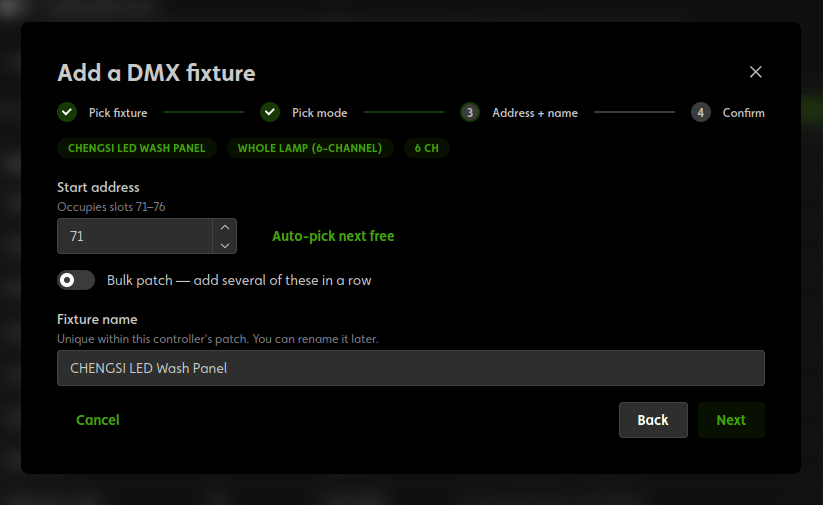
Click Add fixture. The wizard walks four steps:
- Pick fixture: browse the Fixture Library right in the wizard, system fixtures or your own, with search and filters (has color, has pan/tilt, has named states).
- Pick mode: only appears for multi-mode fixtures. Pick the mode matching how the fixture is physically configured; the profile must match the fixture's own menu setting.
- Address + name: the Studio pre-fills the lowest free address where the fixture fits (there's an Auto-pick next free button if you've changed it), and shows exactly which slots it will occupy. Give it a name you'll recognize on the timeline; "Stage Left Par" beats "SlimPAR 56 (2)".
- Confirm: review the layout, then Patch fixture.
Patching several identical fixtures? On the address step, flip on the Bulk patch switch. Pick how many (each gets the next consecutive address) and a base name (they're auto-named "Base 1", "Base 2", …).
The Studio's patch must match the address dialed into the physical fixture. The patch tells the Studio where the fixture is listening; it doesn't set it. See Addresses, and leave gaps between fixtures while you're at it.
The wizard edits the configuration on screen; the patch reaches the controller when you save the configuration, like any other configuration change.
The patch table
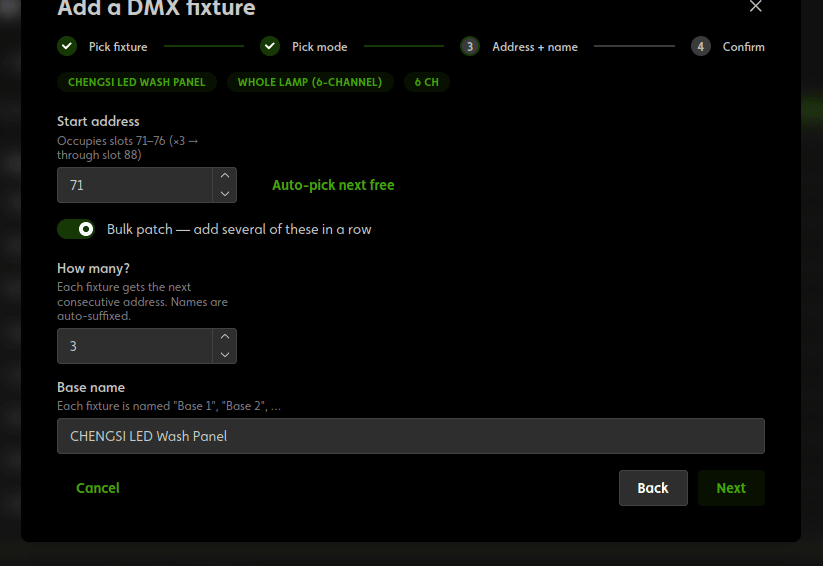
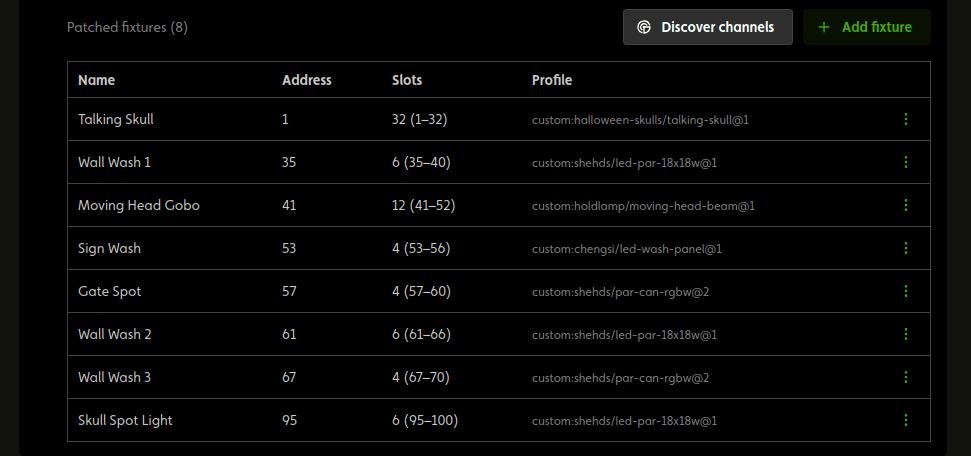
Patched fixtures list by address, showing each fixture's name, address, occupied slots, and which library profile it came from. From a fixture's menu you can Edit, Sync from library, or Remove it.
Overlapping fixtures (two patches sharing slots) are flagged as warnings. They don't block saving, because sometimes an overlap is deliberate mid-rework, but a persistent banner lists them until they're fixed. Only an address that runs past slot 512 is a hard error.
Editing a patched fixture
Edit opens the fixture's patch:
- Name and address: safe to change anytime. Shows and rules reference the fixture itself, not its address, so nothing breaks (see re-addressing for deployed shows).
- Color groups: group the fixture's red/green/blue (plus white/amber) channels into a single color picker. Multi-head fixtures can carry several groups.
- Channel layout: tweak channel names, kinds, state ranges, defaults, and safety values for this patch. The slot count and order are locked (that's the profile's job; edit the library profile and re-patch to change the shape). See Fixture Channels for every field.
A patch whose layout has been edited away from its library profile shows a Modified badge in the table.
Syncing a patch with the library
Sync from library re-pulls the fixture's channel layout and color groups from the profile it was patched from, keeping its name, address, and identity. Use it after updating a profile in My Fixtures, or when a system profile gets revised.
The Studio confirms before syncing, and warns specifically when the library version has a different footprint (the fixture may newly overlap a neighbor) or when the patch has local edits the sync would overwrite.
Removing a fixture
Remove takes the fixture out of the patch. Shows that still reference it don't break or block deploying; the affected tracks simply stop reaching a light. Re-patch a fixture or clean up the show when you're ready.
Re-addressing and deployed shows
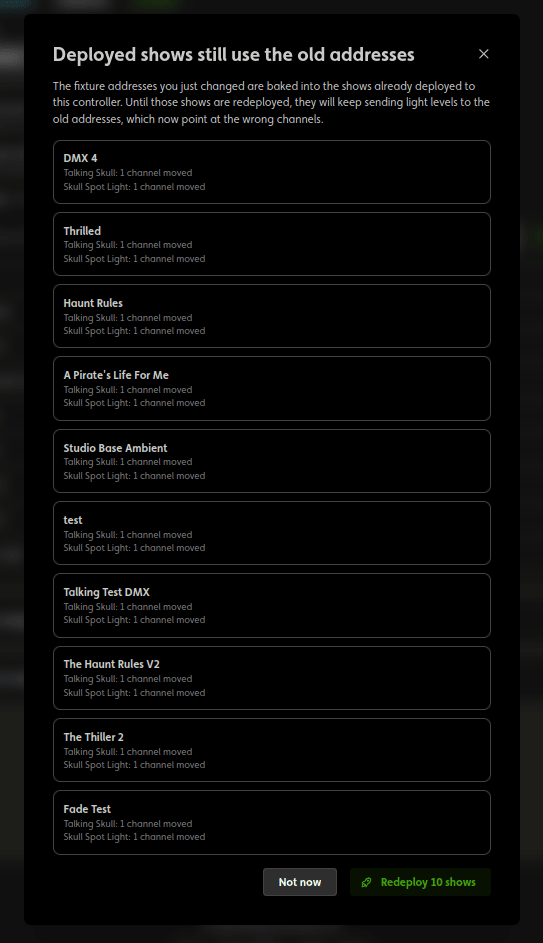
Shows resolve fixture addresses at deploy time. That means a show already deployed to the controller keeps sending levels to the old addresses until it's redeployed.
The Studio watches for this: save a change that moves fixture addresses (or reshapes channels) and a "Deployed shows still use the old addresses" dialog lists every affected deployed show, with a one-click Redeploy button that re-resolves all of them against the new patch, without publishing any unrelated draft edits. Very old shows in a legacy format can't be auto-redeployed; open those in the editor and deploy them again by hand.