The Fixture Library
A fixture profile describes a model of fixture: its manufacturer and model, and one or more modes, the channel layouts the fixture can be set to (many fixtures offer, say, a 4-channel basic mode and a 12-channel extended mode). Each mode lists the fixture's channels in order: what each one is (dimmer, a color component, pan, a strobe-mode selector…) and how it behaves.
You manage profiles on the DMX Fixtures page in IgorBox Studio's main navigation. It has three tabs.
My Fixtures
Your Studio's own fixture profiles. Everything here is editable: profiles you built from scratch, imported from gdtf-share, or cloned out of the system catalog.
- Search by name or manufacturer, and switch between a Grid and Table view.
- Each fixture offers Edit, Duplicate, and Delete.
- New fixture opens the profile editor (below).
System Fixtures
The built-in, read-only catalog: profiles curated by IgorBox plus the community Open Fixture Library and GDTF sources. Filter by source, manufacturer, and channel count.
You can't edit a system fixture directly; clone it instead. The clone lands in My Fixtures as your own editable copy, which is also the fastest way to build a "custom" profile: start from something close and adjust.
You don't need to clone just to use a system fixture; patching works straight from the catalog. Clone when you need to change something.
gdtf-share
gdtf-share.com is the lighting industry's community catalog for GDTF (General Device Type Format) fixture descriptions. Manufacturers and users publish ready-made profiles there, so you don't have to map every channel of every fixture by hand.
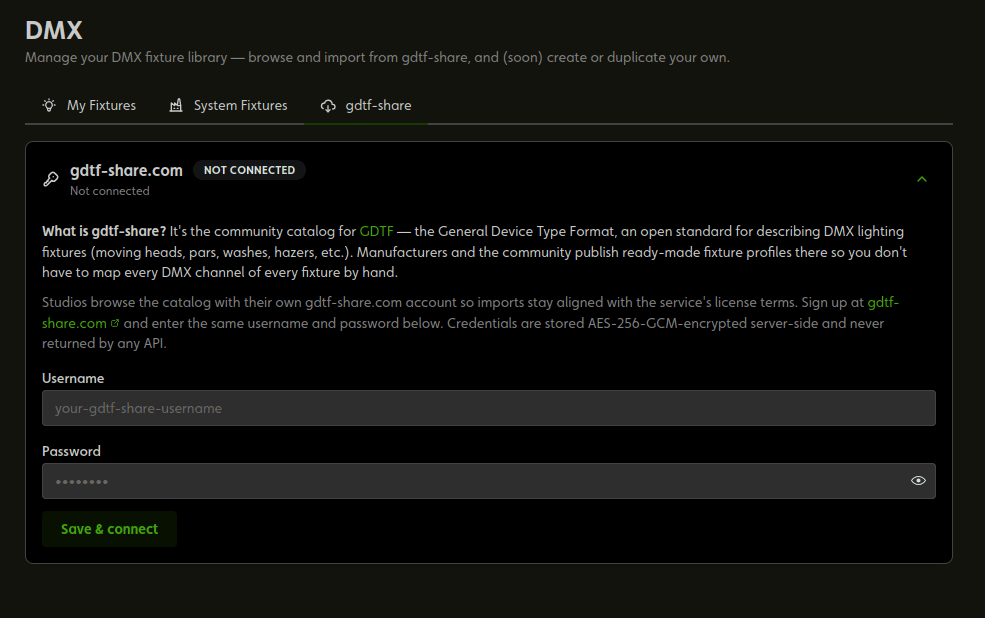
Because gdtf-share requires an account, each Studio connects its own:
- Sign up (free) at gdtf-share.com.
- On the gdtf-share tab, enter that username and password and click Save & connect. Only your Studio's admins can connect, replace, or disconnect the account. Credentials are stored encrypted and never shown again after saving.
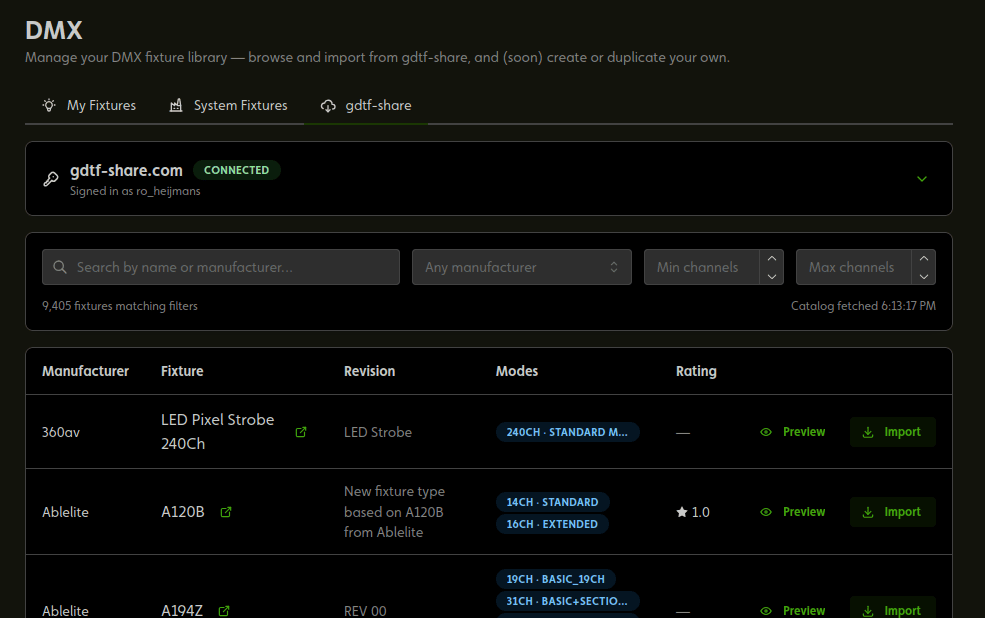
- Once connected, the tab becomes a catalog browser: search by name or manufacturer, filter by channel count.
For any fixture in the results:
- Preview shows the profile before you commit: its modes, every channel with its role, and any conversion warnings.
- Import converts it and drops it into My Fixtures, ready to patch and edit.
Building your own profile
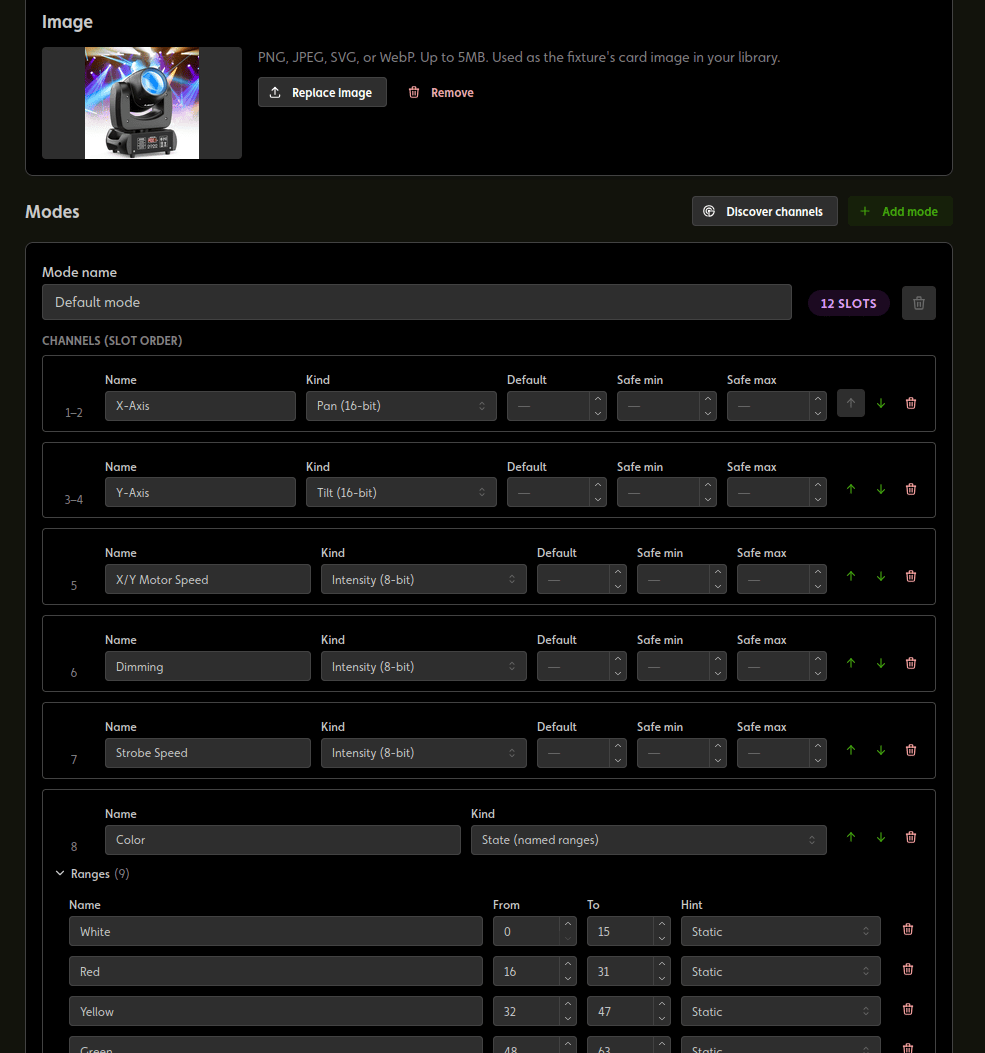
New fixture (on the My Fixtures tab) opens the profile editor:
- Identity: manufacturer and model. These are locked after the first save (they become the profile's permanent identity); to rename, use Duplicate. A free-form Notes field is a good home for wiring quirks and manual-mode settings.
- Modes: every profile has at least one. Give each mode a name (e.g. "8ch basic") and build its channel list in order with Add channel. The channel count (the fixture's footprint) is derived automatically. See Fixture Channels for what each channel kind does.
- Color groups: when a mode has red/green/blue (plus white/amber) channels, they're grouped so the Studio can drive them as one color picker. A default group is created for you; you can split it up (for multi-head fixtures with independent color sections) or clear it.
- Card image: upload a photo after the first save.
Working from a fixture whose manual is missing or wrong? Click Discover channels in the editor to probe the real thing live; see Channel Discovery™.
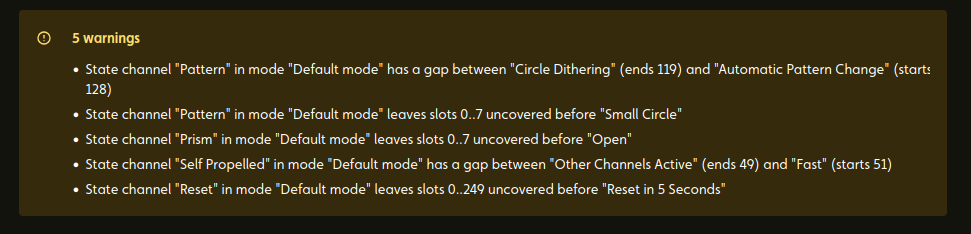
Validation runs as you type: errors block saving; warnings don't.
Profile edits don't chase your patches
When you save changes to a profile, controllers already patched with it keep the layout they were patched with; edits affect future patches only. That's deliberate: a library edit can't silently re-wire a controller mid-season.
To pull a profile update into an existing patch, use Sync from library on the patched fixture. See Patching Fixtures.