Channel Discovery™
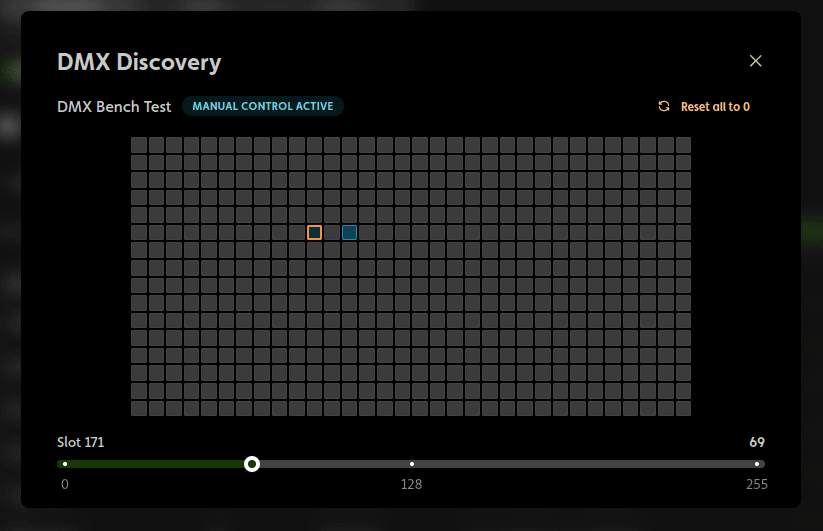
Some fixtures come with no manual. Some come with a wrong manual. DMX Discovery is IgorBox Studio's answer: drive any slot of the universe by hand, watch what the fixture does, and map its channels by experiment.
Opening it
Two ways in:
- From a fixture profile: the Discover channels button in the profile editor. You'll pick which online DMX controller to probe through. This is the classic use: figure the fixture out while you build its profile.
- From a controller: the Discover channels button in the controller's DMX configuration section. No picker; you're probing through that controller.
Either way, the controller enters Manual Control for as long as the window is open, and releases it when you close it.
Using it
The window shows the whole universe as a grid of 512 cells, one per slot, lighting up as values rise.
- Set the mystery fixture to a known address (address 1 keeps the math easy).
- Click a cell to select that slot.
- Drag the slider (0–255) and watch the fixture. Nothing? Next cell. Light? You found the dimmer. A lurch of movement? That's pan or tilt. Write down what you learn.
- Reset all to 0 clears the whole universe between experiments.
The footprint overlay
Opened from the profile editor, Discovery overlays your work-in-progress profile onto the grid: the cells the profile claims are outlined and labeled with their channel names, anchored at a Probe address you control (multi-mode profiles get an Overlay mode picker).
The loop becomes: probe a slot → identify it → name it in the profile → watch the overlay line up with reality. When every labeled cell does what its label says, the profile is done, and already verified against the real fixture.
If a slot past the fixture's documented footprint provokes a reaction, you've found one of the hidden channels that make leaving address gaps good advice. Add it to the profile as a No-op slot so the footprint reflects the truth.