Tips and Tricks
CarlBot works from what's in your IgorBox Studio. The more your IgorBox Studio says about what you're trying to do, the less CarlBot has to guess, and the more its first pass looks like what you had in mind. None of this is extra work for CarlBot's sake. It's the same information anyone new to your show would need, written down once where everyone can see it.
In rough order of payoff:
- Name every channel.
- Write real descriptions for shows, Logic Rules, and controllers.
- Transcribe your audio and tag the sounds.
- Fill in the Prop Rig for anything that moves.
- Add durable facts to CarlBot's memory with Remember this.
Name channels for what they do
CarlBot goes by the names you give your channels in a controller's configuration. It never shows you raw channel numbers, and it works far better when you don't make it work with them either.
Name each channel for the thing on the other end of the wire: "Skull Jaw," "Lid Cylinder," "Strobe," "Lounge Par Can 1." Then "hit the strobe" means exactly one track. Clear color group names, plain labels on Logic Rule nodes, and tags on controllers all help CarlBot understand your setup the same way.
Write descriptions that say what you're going for
Every show, Logic Rule, and controller has a description field. CarlBot knows which one you have open, and the description is the clearest thing you can give it about what that item is for. A real description changes how CarlBot approaches everything in that item.
Shows. Describe the vibe, the intent, the look, and the feel, not just the contents.
Weak: "Coffin room show."
Strong: "Coffin room jump scare. Guests enter a dim Victorian parlor, slow ticking clock, single candle. After a beat of quiet the lid slams open with a strobe hit and an air blast, then fog rolls out low and the room goes red. Fast, loud, and over in four seconds. Reset should be silent."
Logic Rules. Describe the goal of the puzzle or the sequence in plain words, including what "solved" and "failed" mean. This is what CarlBot leans on when you ask it to change or debug the rule later.
Weak: "Button puzzle."
Strong: "Vault puzzle. Players must press the four wall buttons in the order shown on the painting within ten seconds. Success releases the maglock on the vault door and plays the Reveal show. A wrong press or a timeout plays Buzzer and resets. The game master can force-solve from the Game Master rule."
Controllers. Say where the controller physically is and what part of the show it runs.
Weak: "Output 8 #3."
Strong: "Coffin Room controller. Mounted above the false ceiling by the entry door. Runs everything in the coffin room: lid cylinder, strobe, fog, the two red washes, and the parlor audio. The hallway sensor that starts the scene is on the Hallway controller, not this one."
Write for a person who has never seen the room. If it would help someone who has never seen the room, it helps CarlBot. You'll see a reminder under each description field saying that AI assistants read it.
Two notes. Put the important context on the shows and controllers themselves rather than on a group. And if you'd rather not write descriptions from scratch, ask CarlBot to draft one for a show, rule, trigger, or controller and edit what it gives you.
Pick targets first
Before you ask CarlBot to lay out a new show, choose the show's target controllers. A show only has tracks for the controllers it targets, so CarlBot has nowhere to put a cue for a controller you haven't added yet.
Transcribe your audio and tag the sounds
If you do one thing on this page, do this. A transcript turns an audio file from a waveform into a map, and it improves nearly everything about building a show.
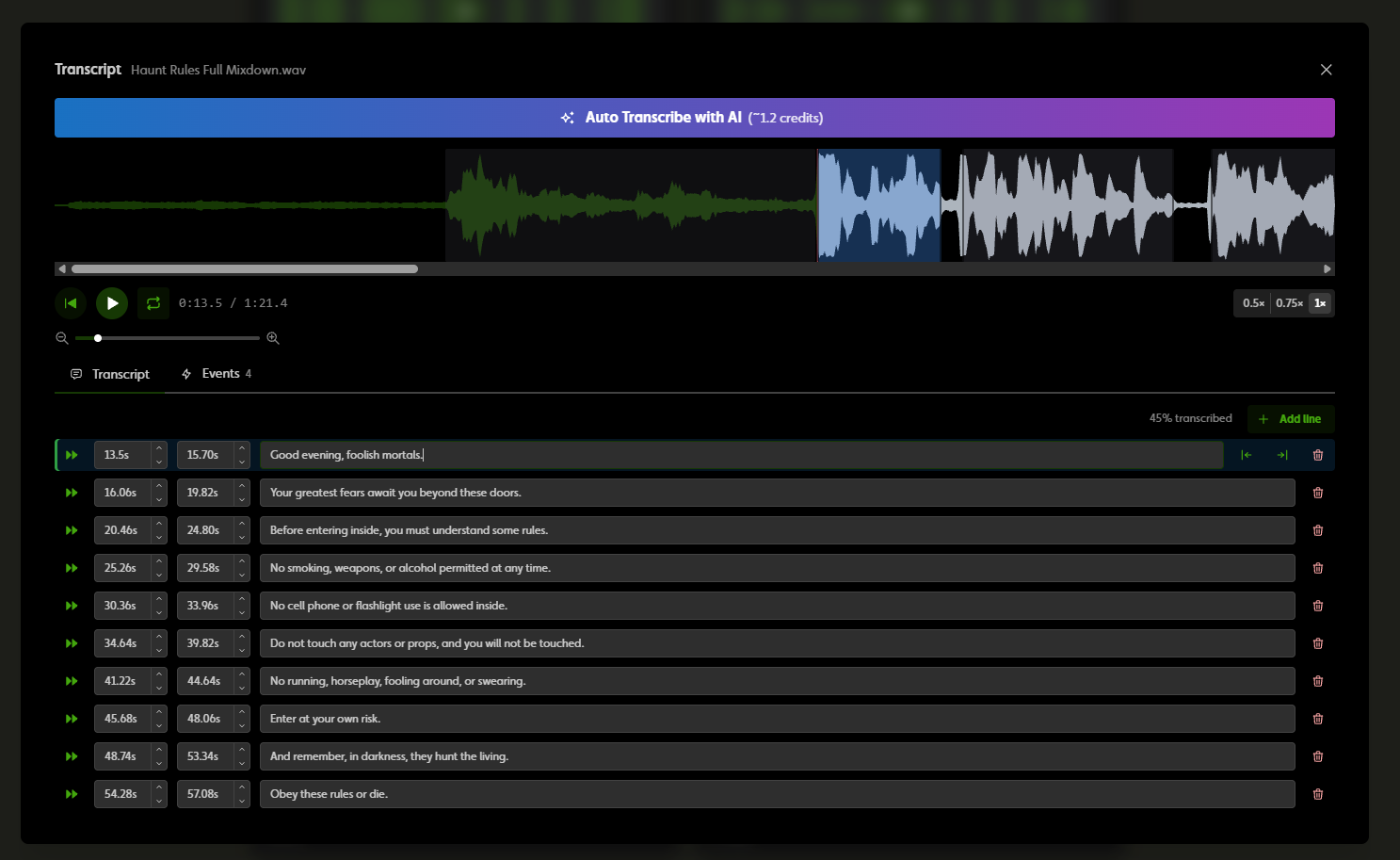
Words. Once a voice track is transcribed, a talking prop's jaw follows the words and stays shut between them. This is the difference between a prop that talks and a prop that flaps. CarlBot can transcribe a file for you (it shows the cost first), or if you already have the words written down, it can enter them at no cost.
Events. The transcript editor's Events tab is for the non-speech sounds: a thunder crash, a scream, a door slam. Auto Transcribe tags many of them automatically, and you can add your own by dragging across the waveform or with Add event at the playhead. Each event gets a label and a choice of Jaw, Ambient, or Auto:
- Jaw moves a talking prop's mouth on that sound (a laugh, a growl, a scream).
- Ambient leaves the mouth shut (thunder, footsteps, a door).
- Auto lets IgorBox Studio guess from the label.
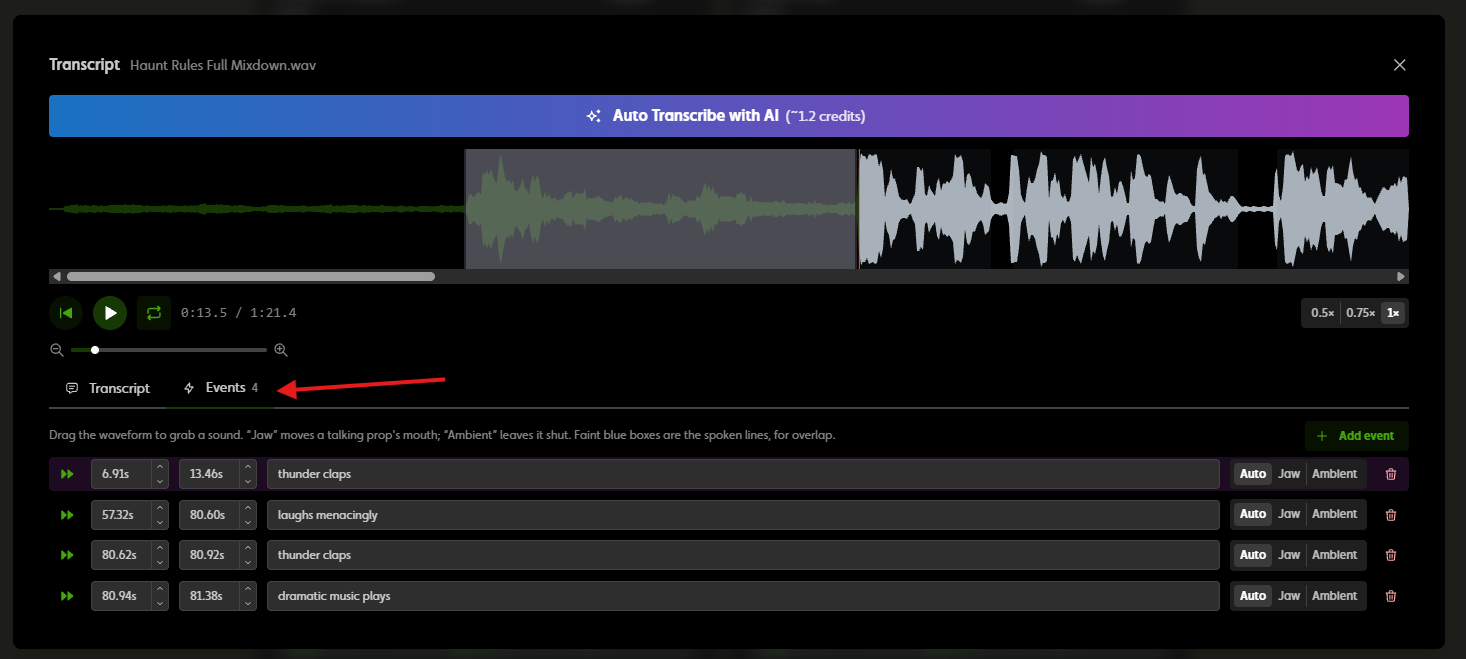
Tagged events are what make "flash the red wash on the thunder" work: CarlBot can find the thunder. It can also place cues on the loud hits in a track even without a transcript, but the words are what make a talking prop talk.
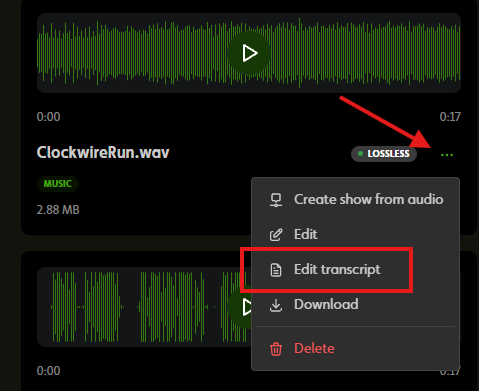
Open the file in your media library, choose Edit transcript, and you'll find both tabs. See Talking props for what CarlBot does with them.
Rig your props
For anything that physically moves, fill in the Prop Rig on the controller's Configuration tab: what each channel moves (a jaw, an eye, a head turn), how far it can safely travel, whether the channel is reversed, and how early to fire a slow cylinder so it lands on the beat. When CarlBot animates a prop from audio, it uses those settings to keep the motion safe and on time. Name the channel clearly as well; CarlBot uses both.
Save what's worth remembering
CarlBot has a memory, and it's different from a description. The description is part of the show, rule, or controller itself: everyone sees it in settings and lists, search matches on it, and it says what the thing is. CarlBot's memory is what it keeps in mind while working on that item: the quirks, lessons, and deliberate choices. Memory lives separately and doesn't appear in the editor or in lists. It helps CarlBot understand your IgorBox Studio over time; to ask CarlBot to do something, ask in the chat.
Rule of thumb: if it helps a person skimming the show list, put it in the description. If it only matters when someone is working on that show with CarlBot, put it in CarlBot's memory.
When CarlBot tells you something you'll want it to remember, click Remember this on that answer. There are two kinds of memory:
- Memory for a show, a Logic Rule, or a controller. Click Remember this while that item is open and it goes there. It's only used when CarlBot works on that item.
- Studio memory, for the whole IgorBox Studio, used wherever you open CarlBot. Click Remember this from the dashboard, a list, or settings and it goes there.
A fact about the Vault Door belongs with the Vault Door rule; a fact about the whole building belongs in Studio memory. Groups don't have memory.
When you click Remember this, CarlBot shows you a draft of the updated memory in a box, for this show or for the whole IgorBox Studio. Edit anything, then click Save to memory. What's in the box replaces the memory exactly as written, so read it over before you save. Everyone in the IgorBox Studio shares the same memory; Editors and above can save it. Drafting uses a small number of credits.
You can also open the memory directly. Click Memory in the CarlBot panel and the CarlBot memory window shows the Studio memory block and, when you have a show, rule, or controller open, the Memory for this show (or rule, or controller) block, each with its own Save and Discard. It's the place to read what CarlBot has been told, fix something that's out of date, or write memory by hand without waiting for CarlBot to suggest it. Every save is recorded in the audit log.
CarlBot leans on its memory, so a wrong or stale entry shows up in its work. Prefer Remember this over editing by hand. If CarlBot's results seem off and the memory looks strange, it's safe to clear it; CarlBot goes back to working from what's in your IgorBox Studio.
Memory is the right place for the things you'd otherwise have to tell someone the first time they work on that show with you:
- "The jaw on this skull reads backwards; 0% is open."
- "We tried a slower fade on the reveal and the client didn't like it."
- "Leave the UV floods alone. A separate Logic Rule runs them."
- For the whole IgorBox Studio: "The fog machine needs about five seconds to warm up, so cue it early."
What the show is belongs in the description, not in memory. Things that change every week are better left out of both. Tidy the memory up now and then in the Memory window; a short, current memory serves CarlBot better than a long stale one.
Open the thing you want to work on
CarlBot works on the page you have open. Open the show, then ask about the show. Open the Logic Rule, then ask about the rule. On a controller's page it can also start or stop shows and change the front button and ambient settings for that controller. If it seems to be answering about the wrong thing, check what the badge in the panel title says it has in focus.

Ask in the order you'd build
CarlBot's first pass is only as good as what's already in place. A good order for a new scene:
- Name the channels, fill in the Prop Rig, and write the controller description.
- Upload and transcribe the audio, then tag the sounds.
- Create the show, pick its targets, and write the description.
- Then ask CarlBot to lay out the timeline.
Do it the other way around and you'll spend the credits twice: once for the guess, once for the fix.
Be specific, then iterate
Name the controller, the channel, the time, and the duration. "Strobe on Coffin Room's Strobe channel for 2 seconds at 0:05" is a complete instruction. "Make it scarier" is a question CarlBot will bounce back to you, because it doesn't know what scary means to your guests (see What CarlBot Can't Do).
If the first pass isn't right, say what's wrong rather than starting over. CarlBot keeps the conversation and adjusts. And if you don't like a change, "undo your last change" puts it back.