CarlBot: Your Technical Assistant

CarlBot is the technical assistant built into IgorBox Studio. It handles the tedious part of show building so you can stay creative. You describe what should happen; CarlBot lays it out on the timeline or drafts the Logic Rule; you look it over and approve anything that matters.
You stay in charge. CarlBot works on whatever you point it at, lists every change it makes as it goes, asks before it does anything risky, and never touches your hardware without a click from you.
What it helps with
| You say | CarlBot does |
|---|---|
| "When the coffin lid opens, the strobe flickers for two seconds, then the fog kicks on for five." | Lays out the clips and fades on the show's timeline for you to check. |
| "Solve the puzzle when all four buttons are pressed within ten seconds, then release the maglock and play the reveal." | Drafts the Logic Rule and connects the inputs, outputs, and shows. |
| "Transcribe this voice track so the skull's jaw only moves on the words." | Writes the time-aligned transcript and sets up the jaw movement from it. |
| "Which shows use the fog machine?" | Looks it up in your IgorBox Studio and tells you. |
Here's what that looks like: one request, and the skull's jaw, rotate, nod, and eye tracks laid out from the voice track for you to check and start editing the details.
The full list, with details and example prompts, is on What CarlBot Can Do.
What it won't do
CarlBot has no taste and never will. It can't tell you whether a scare lands, whether a puzzle is fair, or whether the reveal should hold for two seconds or four. That's your call, whether you're the designer or the technical director. CarlBot's job is to get your idea into IgorBox Studio correctly so your time goes to the parts that are fun. The full picture of where it stops is on What CarlBot Can't Do.
Where to find it
Look for the CarlBot button floating in the bottom-right corner of every IgorBox Studio page. Click it and a chat panel opens on the right side of the screen. On a desktop the panel sits beside the page rather than over it, so you can keep working while it's open, and you can drag its left edge to make it wider. On a phone it opens full screen.
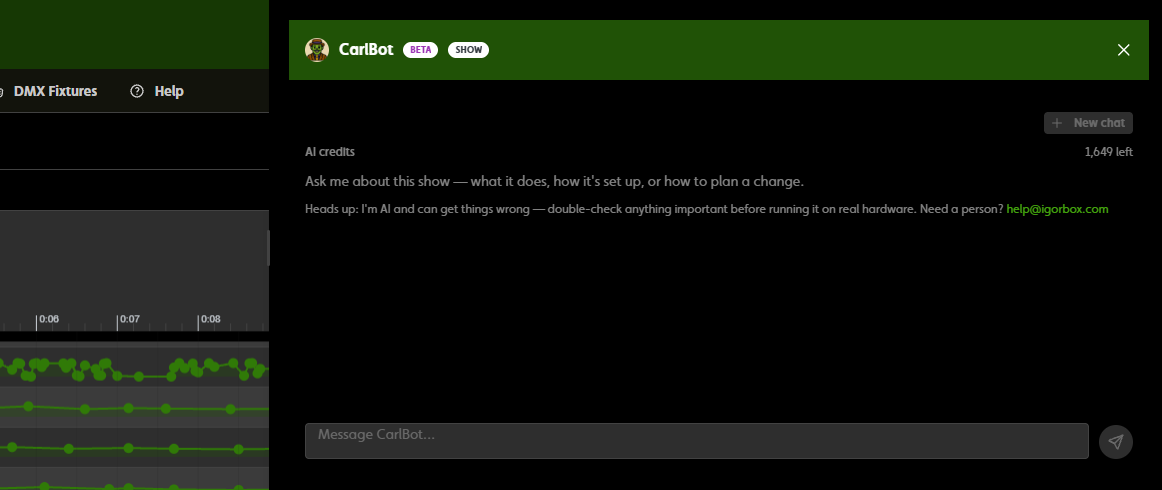
CarlBot pays attention to what you're looking at. Open it on a show, a Logic Rule, a controller, or a group and it works on that item; the panel title shows a badge (Show, Logic rule, Controller, or Group) so you know what it has in focus. Open it anywhere else and it works across your whole IgorBox Studio.
The panel carries a short reminder that CarlBot is AI and can get things wrong, so double-check anything important before running it on real hardware. If you'd rather talk to a person, email help@igorbox.com.
CarlBot does its best work when you tell it exactly what you want: name the controller or show, say what should happen, and say when. "Strobe on Coffin Room's Strobe channel for 2 seconds at 0:05" gets a better result than "make the strobe do something cool." If a request is vague, CarlBot asks a clarifying question rather than guessing.
Who can use it
CarlBot is on for every IgorBox Studio on the Free, Builder, and Pro plans. There's nothing to enable: if your plan includes AI credits, the button is there. Enterprise credits are part of your contract; every Enterprise agreement is negotiated individually.
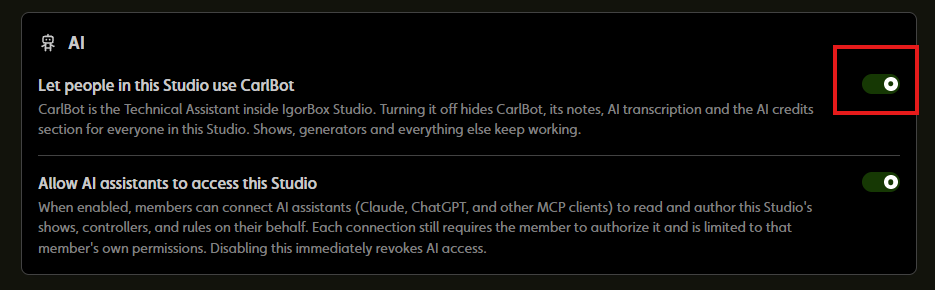
Don't want CarlBot in your IgorBox Studio? An Owner or Admin can turn off Let people in this Studio use CarlBot in Settings → General. It's a separate switch from Allow AI assistants to access this Studio, which controls your own AI assistant, so you can have either, both, or neither. Turning CarlBot off hides the button, CarlBot's memory, AI transcription, and the AI credits section for everyone, and stops it spending credits. Your credit balance and history are kept, just disabled, and if you have a credits plan the billing page still shows it with its renewal date and a Cancel button, so cancel it there if you don't want it to renew. Turn CarlBot back on any time and everything is where you left it.
Everyone in your IgorBox Studio can chat with CarlBot, from Viewers to Owners. What CarlBot can change follows your own role:
- A Viewer can ask questions and get answers, but CarlBot won't edit anything on their behalf.
- An Editor (and above) can have CarlBot edit shows, Logic Rules, transcripts, and controller names.
- Deploying a show or rule needs deploy rights.
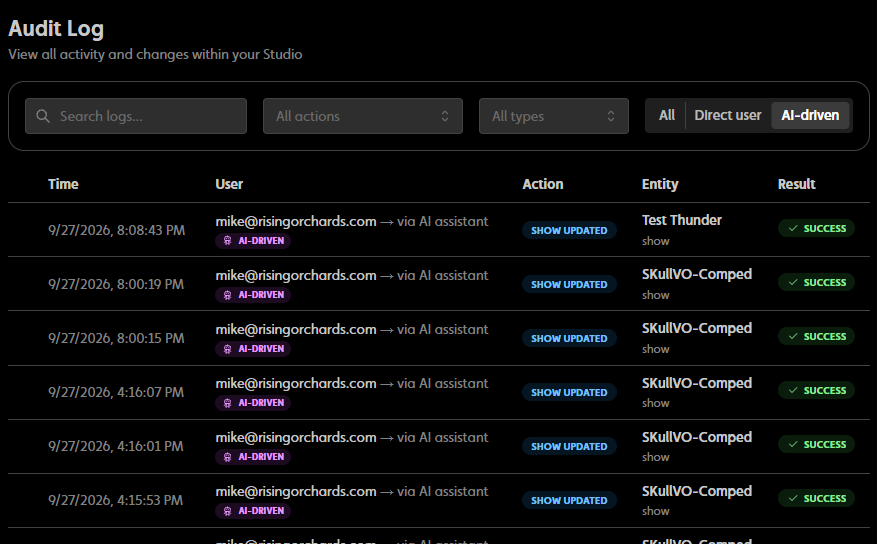
Every change CarlBot makes follows your permissions and lands in the audit log marked as an AI change.
CarlBot spends credits as it works. Every plan includes a monthly allowance; see Credits & Plans for the numbers and what happens when you run low.
On the Pro and Enterprise plans, what CarlBot can do can also be handed to your own AI assistant (Claude, ChatGPT, Cursor, and others). See Connect Your Own AI Assistant.
It asks before anything risky
CarlBot checks in with you in two ways, both right in the chat panel:
- Deleting, replacing, and deploying. Before CarlBot deletes anything, replaces work that's already there, or sends a show or rule to a controller, it stops and shows Yes, go ahead and No, leave it. Nothing happens until you click Yes.
- Hardware actions. Starting or stopping a show on a controller, or changing a controller's front button mode or ambient show, appears as a card with Apply and Cancel.
Small edits don't ask, and "undo your last change" reverses CarlBot's last edit. Details are in Guardrails.
Your conversations
Each person has their own conversation with CarlBot for each show, rule, controller, and group, plus one for each other area of IgorBox Studio. Close the panel and reopen it on the same item, and the conversation is right where you left it. Conversations are private to you, and old ones are cleared automatically after a period without activity. New chat starts over at any time.
CarlBot also has a memory, which helps it understand your IgorBox Studio over time. If it tells you something worth keeping, click Remember this and you'll get a draft of the updated memory to edit and save: memory for the item you have open (a show, a rule, or a controller), or Studio memory if you're on the dashboard or settings. To read or edit the memory directly, click Memory in the panel. Memory is shared with everyone in the IgorBox Studio, and it's the right place for things like "the Vault Door maglock is wired backwards on purpose." Editors and above can save it. CarlBot never adds to its memory on its own. More on Tips and Tricks.
CarlBot leans on its memory, so a wrong or stale entry shows up in its work. Prefer Remember this over editing by hand. If CarlBot's results seem off and the memory looks strange, it's safe to clear it; CarlBot goes back to working from what's in your IgorBox Studio.
Your data
CarlBot works from your IgorBox Studio, and a few things are worth knowing about where that information goes.
- What leaves your IgorBox Studio. What you type, your conversation, CarlBot's memory, and the parts of your IgorBox Studio CarlBot needs for the job, such as the show or rule you have open, your controllers' names and status, and your media and transcripts. For transcription, the audio file itself.
- Who helps produce the answer. CarlBot's replies and transcriptions are produced with the help of service providers, under contracts that require confidentiality and data protection, as described in the IgorBox Privacy Policy.
- Training. IgorBox may use anonymized or aggregated usage data to improve its services, including AI features. No personally identifiable information is used for model training without your explicit consent. The exact wording is in the Privacy Policy and Terms of Service.
- How long conversations stick around. Your conversations are private to you, and old ones are cleared automatically after a period without activity. New chat clears the current one right away.
- Feedback. When you press Bad answer, the question, the answer, and anything you type in the "What was wrong?" box go to the IgorBox team so we can fix it.
If you connect your own AI assistant, the picture changes: see Connect Your Own AI Assistant.
Beta expectations
CarlBot works in real IgorBox Studios today, and people are using it on real attractions. It is also under active development, which means:
- New abilities appear regularly. If it can't do something today, check back.
- Workflows can change as we learn from how people actually use it.
- Occasionally it will get something wrong. Review what it laid out before you deploy, the same way you'd check anyone's work before it goes in front of guests.
- Very large jobs can stop partway. CarlBot tells you what it finished and picks up where it left off when you say "continue."
Every answer has Good answer and Bad answer buttons. A thumbs down opens an optional "What was wrong?" box and goes straight to the IgorBox team. You can also reach us on Discord or at help@igorbox.com. Beta feedback directly shapes what CarlBot learns next.
Where to next
- What CarlBot Can't Do: the parts of the job that stay yours, and why.
- What CarlBot Can Do: every job it can help with, with example prompts and the guardrails around each.
- Tips and Tricks: descriptions, transcripts, and CarlBot's memory, the things that make its first pass land closer to what you meant.
- Credits & Plans: how credits work, what each plan includes, and how to add more.
- Connect Your Own AI Assistant: let Claude, ChatGPT, or another assistant work in your IgorBox Studio.