Connect Your Own AI Assistant
What CarlBot can do in your IgorBox Studio can also be handed to your own AI assistant over the Model Context Protocol (MCP). Connect Claude, ChatGPT, Cursor, VS Code, or any other MCP-capable assistant, and it can look at your controllers, shows, and media and help you make the same kinds of changes CarlBot does, from wherever you already work.
This is useful when you'd rather talk to your IgorBox Studio from the assistant you already have open, or when you want to combine IgorBox with your other tools in one conversation: "read the cue sheet in this spreadsheet and lay the show out from it."
This connection is the one to use. It gives your assistant your IgorBox Studio and the ability to look things up in this documentation, so you don't need the separate docs-only MCP server as well. That one is still there for anyone who wants an assistant to read the docs without connecting it to an IgorBox Studio or if you are a lower tier like Free or Builder.
Who gets it
Assistant connections are included on the Pro and Enterprise plans. On those plans an Admin or Owner sees the AI Integrations switch in IgorBox Studio settings and a Connect an AI assistant card under Docs in the left navigation. On other plans, you'll see an upgrade prompt where those would be.
What your assistant gets
Your assistant can do most of what CarlBot can, plus a few extras:
- Read your shows, rules, triggers, controllers, media, and transcripts.
- Lay out and edit timelines and Logic Rules.
- Transcribe audio in your media library (this uses your IgorBox Studio credits).
- Deploy shows and rules.
- Manage Trigger Boards and check Trigger delivery. Board changes, revealing a sharing link, and pressing a board button require your confirmation; see Trigger Boards.
- Guidance and ready-made recipes for common builds, such as a talking prop, a jump scare, or an escape room puzzle.
A couple of things stay CarlBot-only: starting or stopping a show on a controller, and changing a controller's front button mode or ambient show.
Everything the assistant does is done as you. Your IgorBox Studio role limits what it can change, the permissions you approve at sign-in limit it further, and every change shows up in the audit log like any other.
Set it up
There are no API keys or tokens to copy. You sign in with your IgorBox account in the browser, the same way you sign in to IgorBox Studio.
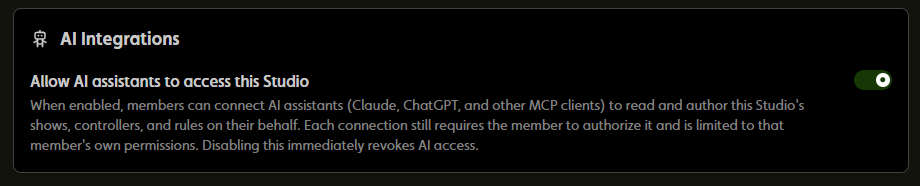
- Turn on AI Integrations. An Admin or Owner opens Settings → General in IgorBox Studio and turns on AI Integrations: Allow AI assistants to access this Studio.
-
Add the server to your assistant. The server address is:
https://studio.igorbox.ai/mcpSteps for the common clients are below. The same steps are also in IgorBox Studio: open Docs in the left navigation and choose Connect an AI assistant.
-
Sign in. Your browser opens to the IgorBox account sign-in. Tick which IgorBox Studios the connection may use and approve the permissions it asks for.
That's it. The connection appears in your assistant on its next conversation.
ChatGPT
-
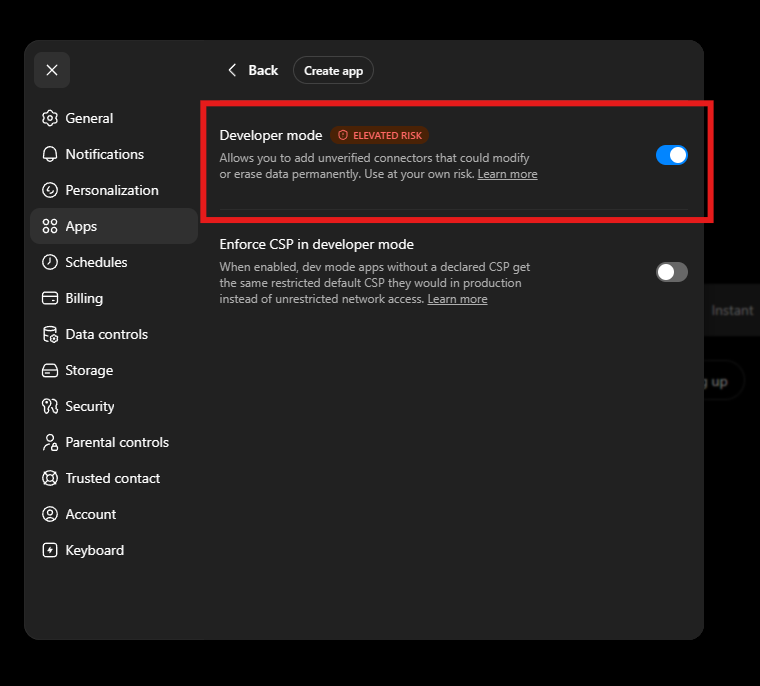
In ChatGPT, open Settings → Apps and turn on Developer mode.
-
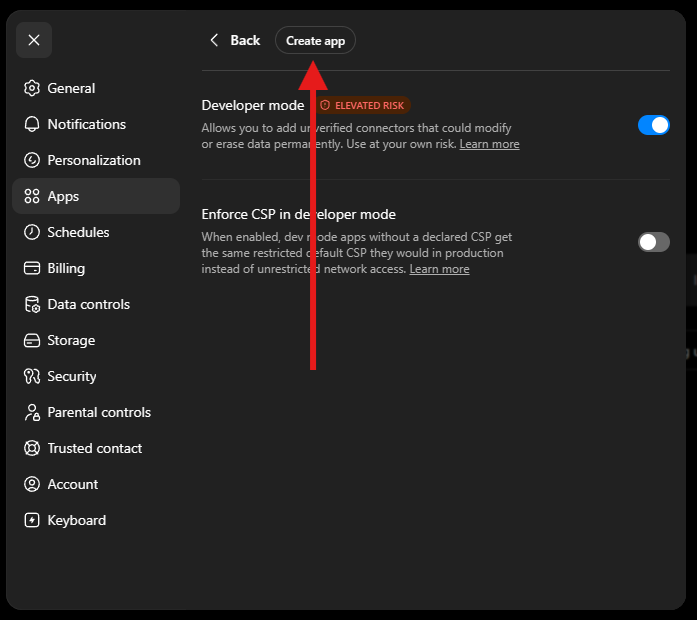
Choose Create app.
-
Name it IgorBox Studio, paste
https://studio.igorbox.ai/mcpas the server URL, leave authentication set to OAuth, tick the acknowledgement, and click Create.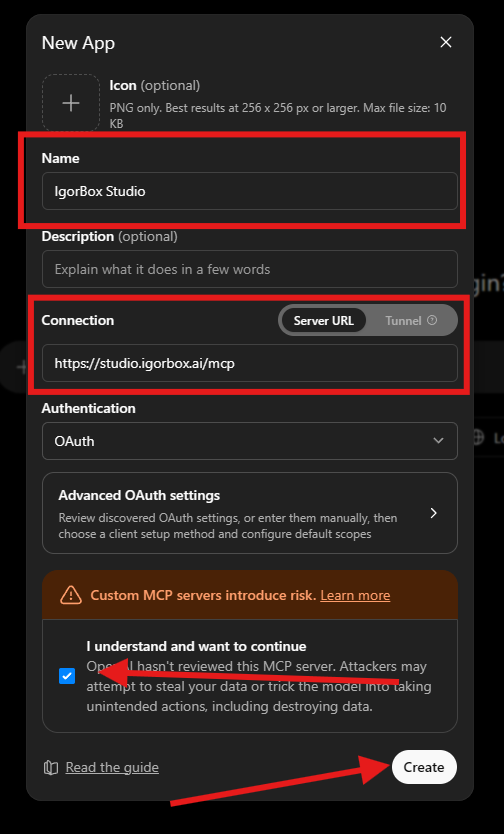
-
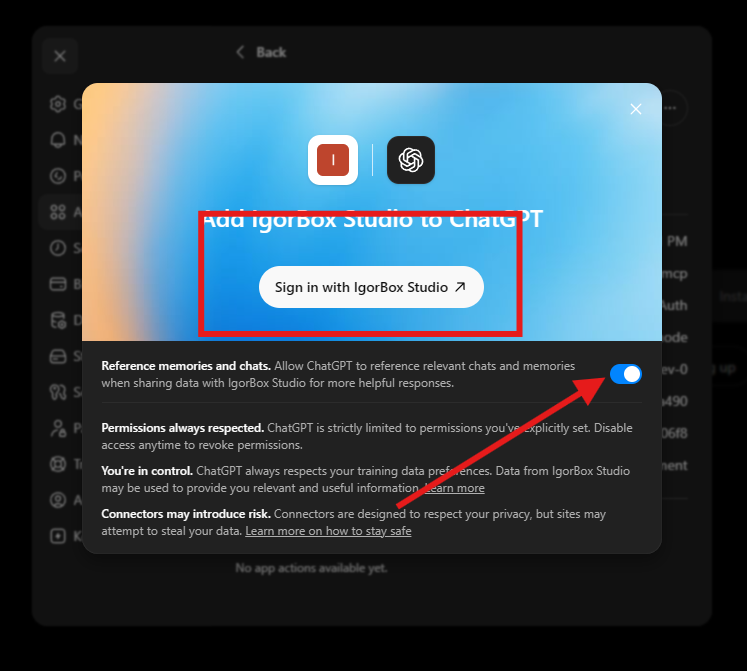
Click Sign in with IgorBox Studio and finish signing in with your IgorBox account.
Claude (web and desktop)
-
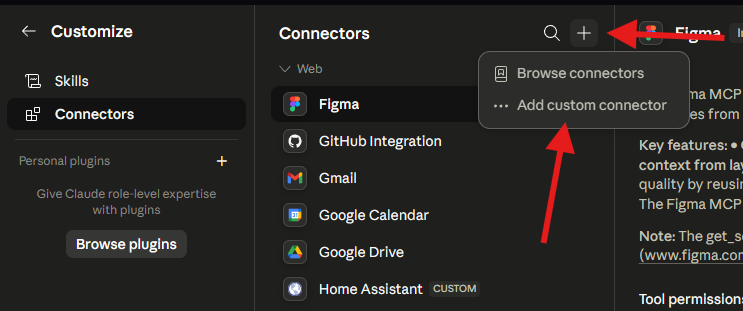
Open Customize → Connectors, then choose Add custom connector from the + menu.
-
Name it IgorBox Studio and paste
https://studio.igorbox.ai/mcpas the URL.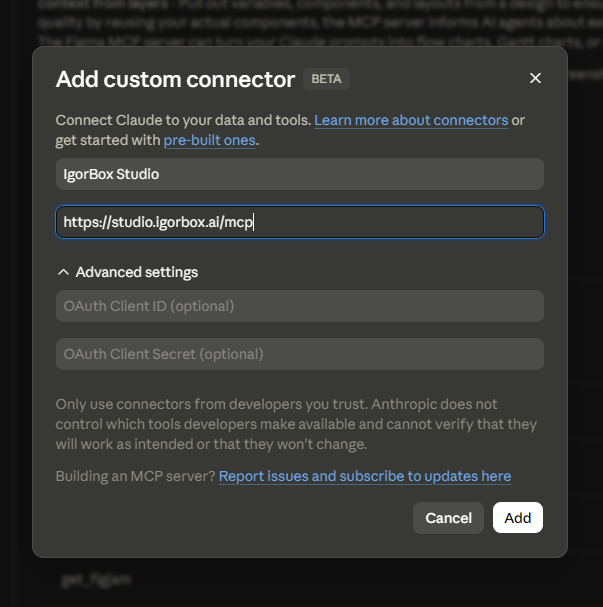
-
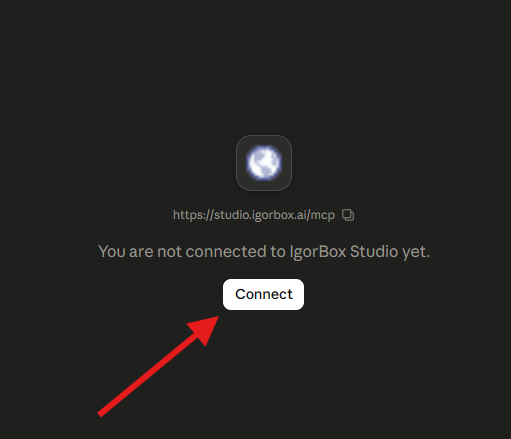
Click Connect and finish signing in with your IgorBox account.
Claude Code
claude mcp add --transport http igorbox https://studio.igorbox.ai/mcp
Then run /mcp inside a Claude Code session to sign in.
Cursor and VS Code
Add a remote MCP server at https://studio.igorbox.ai/mcp in the editor's MCP settings, then sign in when prompted. See MCP Server Setup for where each editor keeps its MCP config.
The IgorBox Studio connection isn't listed in the official connector directories during the beta, so add it as a custom connector using the address above.
Your assistant has to do the asking
Inside IgorBox Studio, CarlBot stops and shows Yes, go ahead before anything risky. When you work through your own assistant, that asking is your assistant's job. Tell it to check with you before it deletes, replaces, or deploys anything, and don't grant it more permissions at sign-in than you need. Your role and those permissions decide what it's allowed to do; the habit of confirming is what keeps you in the loop.
Your data and your assistant
When you connect your own assistant, whatever it reads from your IgorBox Studio, which can include account details and the content of your shows, rules, and media, is sent to that assistant and processed by it and its AI provider under their terms, not IgorBox's. IgorBox doesn't control what a third-party assistant does with data once it has it. Choose assistants you trust, grant only the IgorBox Studios and permissions you need at sign-in, and turn the AI Integrations switch off when you're done. The details are in the IgorBox Privacy Policy.
Credits
Work done through a connected assistant doesn't use CarlBot credits, because you're paying your own AI provider for the thinking. The one exception is transcription, which uses your IgorBox Studio credits either way.
Turning it off
Turning off the AI Integrations switch cuts access for every connected assistant on that IgorBox Studio immediately. During the beta there isn't yet a page listing individual connected apps, so that switch is the one control; you can also remove the connection from the assistant's side.
Trouble?
- The connection doesn't show up: restart the client after adding the server, and check any config file for a missing comma or brace. A syntax error makes clients skip the whole MCP block silently.
- Sign-in errors: make sure the AI Integrations switch is on, and that your IgorBox account is a member of the IgorBox Studio you ticked at sign-in.
- No AI Integrations switch: assistant connections need the Pro or Enterprise plan. Upgrade from the billing page, or contact support.
Still stuck? Ask on Discord or email help@igorbox.com.