Timeline Editor: Basics
The IgorBox timeline editor is modeled on the video editors most people already know — Premiere, DaVinci Resolve, Final Cut. If you've used any of them, the muscle memory carries over.
This page covers the basics: what's on the screen, how to navigate, how to add and move clips. Subsequent pages go deeper on lighting, audio, and deploying.
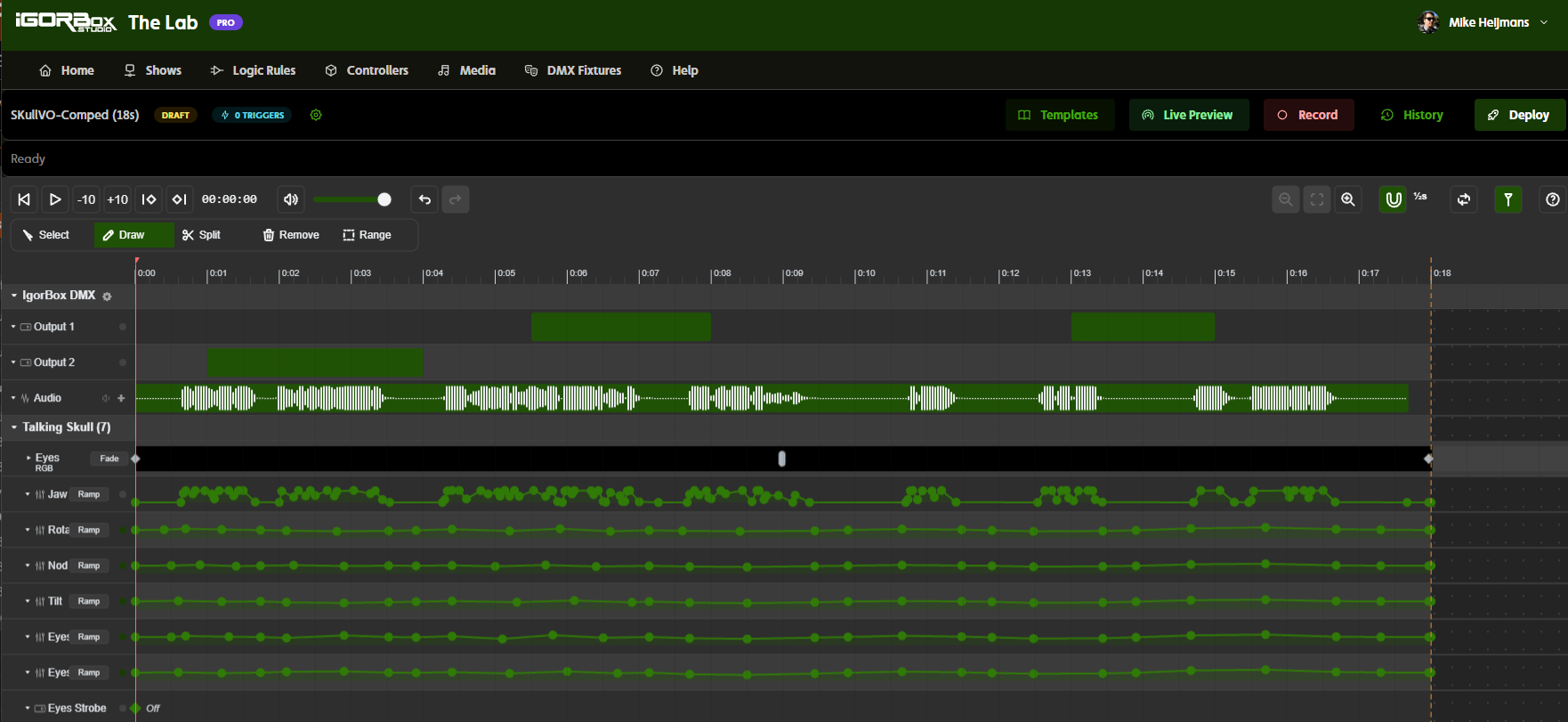
What you see
When you open a show, you see:
- Metadata bar (top) — show name, duration, target controllers, ambient badge if applicable, the deployed-state badge, the Triggers and Logic Rules buttons, and the Live Preview and Deploy buttons
- Status bar (just below) — Ready / Saving / Buffering / Waiting for audio
- Transport — Play, Stop, scrub, volume, undo/redo, the tools, zoom, snap, loop region, and the follow-playhead toggle
- Ruler — time scale (in seconds and frames)
- Track headers (left) — one per channel, plus audio tracks; collapsible by controller
- Track content (center, scrollable) — where clips live
Tracks
A track is a row in the editor. Each track corresponds to one channel of one of your controllers.
Track types:
- Relay — for on/off outputs (like the Output 8 MKII). Clips are simple On pulses.
- Lighting (dimmer) — for dimmable channels. There are no clips; instead you place control points, each a time and a value from 0 to 100%. Between points the channel either ramps smoothly to the next value or steps, holding flat and jumping at the next point. Ramp is the default; a chip on the track header sets the default for new points, and each point can be switched in its value editor. See Lighting.
- Color group — for channels you've grouped into an RGB, RGBW, or RGBAW color group. The row is a gradient bar of color stops, with a Fade or Cut between each pair. See Lighting → Color.
- Audio — for audio clips. Per-clip volume, slip editing, waveform display.
- DMX — for fixtures patched on an IgorBox DMX. Each fixture is a collapsible group of rows (dimmer envelopes, color tracks, state clips, and pan/tilt cues). See DMX Tracks.
The editor only shows tracks for channels the targeted controllers actually have. If a show targets a controller without any audio, you won't see any audio tracks.
There's no separate track type for motors. To drive a motor's speed, use a regular dimmable (lighting) channel on the LED Controller.
Tools
The toolbar in the transport gives you these tools:
| Tool | What it does |
|---|---|
| Select (default) | Click clips to select. Drag to move or resize. |
| Draw | Click-drag on a track to create a clip; on a lighting track, click anywhere to place a control point. |
| Split | Click on a clip to cut it in two. |
| Remove | Click a clip to delete it. |
| Range | Select a span of time — used for color and range-based generators. |
Adding clips
Relay
Switch to Draw mode. Click and drag in the track. You've created an ON pulse from your start drag to your release. Switch back to Select; drag the clip to move it, drag its edges to resize.
Lighting
In Draw mode on a lighting track, click anywhere in the track area to place a control point. The horizontal position becomes the time; the vertical position becomes the value. Click-and-hold to drag the control point you just placed. Hit Escape to bail out.
In Select mode, drag any control point to move it. See Lighting for the full picture.
Audio
Click the + button on an audio track header. The Media Browser opens. Pick a file or upload a new one. The clip lands at the playhead.
You can also double-click on empty space in an audio track to do the same thing.
Moving and editing clips
| Action | How |
|---|---|
| Move | Drag the body of the clip horizontally |
| Resize right | Drag the right edge |
| Resize left | Drag the left edge |
| Slip (audio only) | Alt-drag the body of an audio clip — moves the audio content within the clip without changing its position or duration |
| Split | Split tool, click on the clip |
| Delete | Select + Delete/Backspace, or Remove tool + click |
Clips on the same track can't overlap. Drag a clip into another and it snaps to the gap after.
Snap
Everything you drag snaps. The grid is set from the magnet button in the transport (default: ½ second; also 1 second, ¼ second, single frame, or audio transients), and a Hard / Soft setting decides whether things always land on the grid or get pulled toward nearby clips, points, and the playhead. G cycles the grid, Shift+G toggles hard and soft, and holding Shift while dragging turns snapping off for that drag. Full details, including lining up values on dimmer tracks, are on Snapping & Alignment.
Undo / redo
Standard Cmd+Z / Cmd+Shift+Z (or Ctrl+Z / Ctrl+Shift+Z on Windows).
Drag operations count as a single step — drag a clip across the timeline, that's one undo, not many.
Auto-save
The show saves to the cloud automatically as you work. The status bar shows Saving… while a save is in flight, then Ready when it's done.
You don't need to hit Save. There is no Save button.
Where to next
- Lighting — control points and envelopes
- Audio Clips — slip editing, per-clip volume, waveforms
- Live Preview — testing shows on real hardware
- Deploys and Versions — going from draft to live
- Keyboard Shortcuts — speed-run the editor