 Introducing Trigger Boards, Plus Easier Troubleshooting

Give your actors the buttons they need to run a scene. Trigger Boards put actions such as Start scene, Give hint, and Reset game on a page they can open on a phone, tablet, or computer.
We're also making it easier to find out why a show didn't start, test inputs from your desk, and keep repeated sensor presses from repeating an effect. Here's what's new, including the controller improvements in firmware 2.2.2.
New Feature: Trigger Boards
Create a board for an actor, room, or scene. Give each button a clear name and color, choose what it does, and share the board with the people running the show.
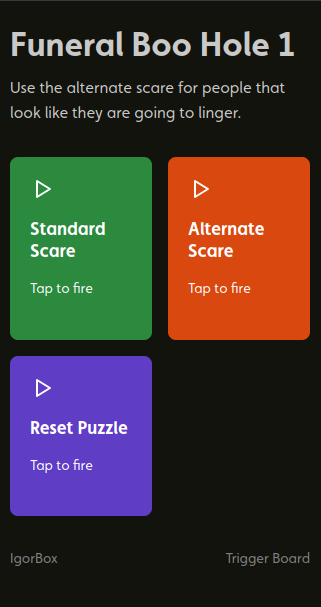
A button can play a deployed show, test a connected sensor input, or run a Virtual Input in a Logic Rule. Virtual Inputs let you add actions such as Reset game without wiring another physical button.
Share boards with your Studio members, or give guests a secret link with an optional PIN. Send an invitation by email or print a QR code to put up on the wall for easy access. Actors open the board and press the named button. They don't need to learn how the show was built, and you don't need to use a valuable input or run wires for an actor trigger.
Open a Trigger Board on an iPad and let guests trigger part of the experience themselves. You can move the iPad around the room without running wires to a controller; it just needs an internet connection.
Trigger Boards are available on Builder and higher plans. Editors, admins, and owners can create boards, and viewers can operate boards shared with Studio members. The device showing the board and the target controller both need internet access.
Explore Trigger Boards, or follow the step-by-step guide to create your first board.
Diagnostics: find why a show didn't start
When a sensor works but the scene doesn't respond, these tools help you decide what to check next:
- Test trigger reach checks which controllers hear the sensor's controller without starting any shows.
- Trigger delivery highlights problems with the connections your shows and rules depend on.
- Events shows requests and controller results, helping you distinguish a show that started from one blocked by a lock or show setting.
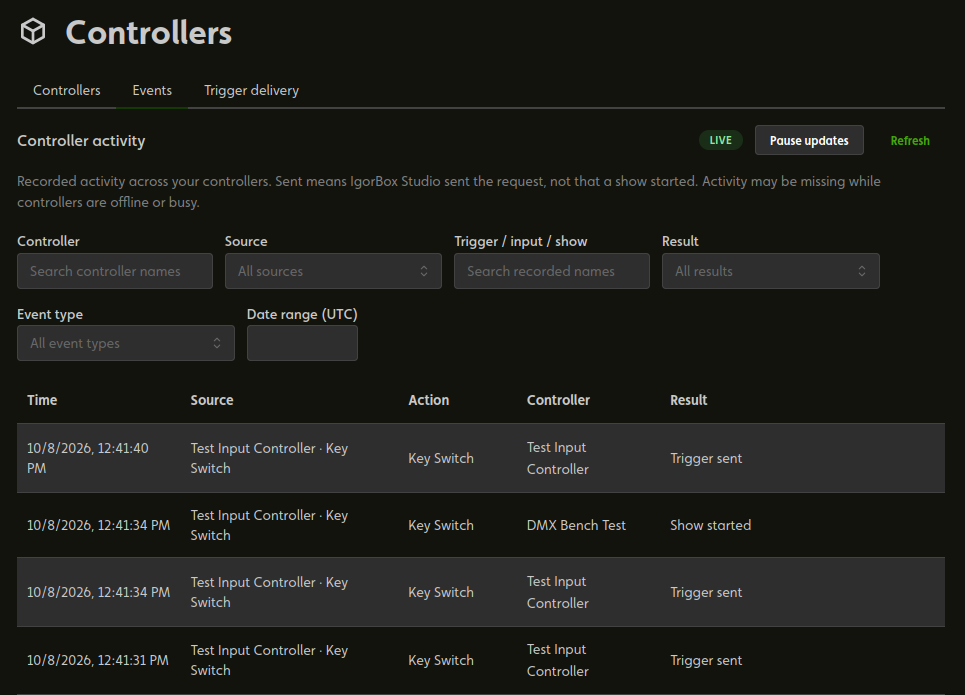
Open Controllers → Events for activity across your Studio, or one controller's Events tab to focus on that box. Filter by controller, source, name, or result to find a board press, webhook, input, or rule. Sent and Received tell you that a request was sent or received; look for Show started to confirm playback.
Walk through Troubleshooting Triggers.
Test an input from your desk
Open Direct Trigger on the controller's Overview tab and click the input's play button. It runs the connected shows and deployed rules as the sensor would, including on other controllers watching that input. There is no need to start Manual Control.
This runs real effects, so make sure everyone nearby is ready. The controller treats Direct Trigger like a real input activation: it respects locks and cooldowns, and inputs used for locking cannot be tested this way. Think of it as a built-in test board for editors, admins, and owners. Learn about Direct Trigger.
Only inputs with one or more assigned triggers appear in the Direct Trigger panel.
Input settings for your scene
For a typical normally open button or sensor, leave Normally closed off and Cooldown at 0. When your scene needs something different, firmware 2.2.2 adds these options across the Input 16, Output 8 MKII, LED Controller, and IgorBox DMX:
- Cooldown lets the first activation fire immediately, then ignores repeated activations for a time you choose. Nothing fires late when the wait ends. While the sensor is idle during cooldown, its purple lights slowly fade in and out. No more juggling timers in Logic Rules just to ignore repeated presses—set the waiting time right on the input.
- Normally closed supports sensors whose contacts open when activated. The input lights, Studio, triggers, and rules all agree on when the sensor is active. Changing the setting adjusts existing trigger and rule connections to preserve when they fire; wait for all affected controllers to finish updating, then test the scene.
Both settings are in the controller's Configuration tab. Input Settings walks through setup and testing.
More reliable triggers
Firmware 2.2.2 improves trigger delivery between controllers and fixes shows starting unexpectedly when a controller starts up or its trigger settings change while a sensor is already active.
Leaving Manual Control no longer starts a show on an updated receiving controller just because a sensor changed during the session. Update every controller involved in the scene; older receivers can still react to those changes when Manual Control ends.
Before running your scene
The new input settings, Direct Trigger, and controller diagnostic reports require firmware 2.2.2 support. Virtual Inputs do not require a new firmware version; testing physical inputs from a board requires Direct Trigger support.
Update the controllers involved and test the scene's inputs, board buttons, and shows before opening.