 Firmware 2.2.0: Ready for Show Season

Firmware v2.2.0 ships today, right as doors open for the season, and it's a bigger release than the last one by a mile! It's also the most tested: 2.2.0 has been running on our beta firmware track since the beginning of July, on real controllers in real haunts and escape rooms, so what you're getting today has already survived a summer of build season. It's built around one idea: the controller should take care of itself so you can take care of the show.
- Repeat a show or start the next one automatically. Loop an effect until you're ready to stop it, or build a sequence of shows. Both keep working if the internet goes down.
- Clearer storage warnings and easier recovery. Studio tells you when a controller has trouble saving shows or media, with a new Format/Repair Storage option to help get it running again.
- More reliable connections. Getting controllers online and triggering shows between them is more reliable, including improvements for networks using WiFi extenders.
- Find the right box, fast. Identify Box makes a controller blink at you from across the room, and Manual Control lets you test a sensor's effect on another controller from your laptop.
Further down: the IgorBox DMX beta rolls on, the Studio can build a show around an audio file, and a long list of smaller fixes.
Repeat shows and start the next one automatically
Open a show's settings (the gear icon in the editor toolbar) and you'll find When this show ends. Flip on Loop this show and it restarts the moment it finishes, until something else takes over. Or pick another show under Then play another show and the controller hands off to it automatically. Ambient shows can hand off too, so a lobby can cycle through several looks and come back around on its own.
We introduced these settings in the June update. Update your controllers to 2.2.0 to use them. Loops and show sequences keep working if the internet goes down, and Studio tells you when a controller still needs the update. See Looping & Chaining.
A looping show needs a way to stop, so the Stop Show button on every controller's Overview and Shows tabs now does exactly that on 2.2.0: one click stops whatever that controller is playing and sends it back to its ambient show.
Two related fixes you'll feel:
- Background shows no longer get in the way of a trigger. The Skip if Playing and Toggle settings control what happens when you trigger a show again. They now work as expected while an ambient (background) show is playing. If you changed your setup to work around the old behavior, check those settings after updating. See Triggers.
- Trimmed audio starts where you trimmed it. Clips trimmed to start mid-file now play from the intended moment. Previously they could start seconds off, or from the beginning. If you hand-tuned a show around the old timing, it may shift.
Controllers that look after themselves
Clearer storage warnings and easier recovery
If a controller has trouble saving shows or media, the Storage card on its Overview tab now shows a Suspected storage issue badge or an Unavailable notice. You can also find storage warnings in the controller's Events tab.
For persistent problems, there's a new Format/Repair Storage button next to Clear Cache. It clears the controller's saved content and downloads it again from Studio, keeping your network settings. The controller won't play shows during recovery, and a large audio library can take longer to download. Choose a quiet moment and leave the power on until Studio says it's finished. Read the Storage guide before using it, including when to contact support instead.
Identify Box and Identify channel
Twelve controllers in a rack and you need the one driving the pneumatic in room three. Start Manual Control, click Identify Box, and every indicator light on that controller blinks until you tell it to stop. Or flip Identify channel on a single channel and just its connector lights blink so you can trace the wiring. See Manual Control.
Test inputs across controllers
In Manual Control, you can latch an input—hold it on to test what happens when a sensor is activated. This now starts the matching triggers and rules on other controllers too. Test the sensor on box A from your laptop and watch box B's scene start, no walk to the sensor needed. Release the input when you're done; see Testing Inputs.
Find a re-added controller
If a deleted and re-added controller won't reconnect, Studio admins now see a banner on the Controllers page identifying the device and explaining what to do next. Follow the reconnection instructions before resetting it.
More reliable connections
These improvements came from real installations, where a connection problem can mean a missed cue or an extra trip across the attraction:
- Easier setup on more networks. Controllers now support IPv6-only internet connections, a type of connection used by some venues and internet providers. There's no extra setting to change. If your venue restricts internet access, share our Connectivity guide with whoever manages its network.
- More reliable triggers between controllers, including improvements for networks using WiFi extenders. A good network still matters; see our WiFi setup advice.
- Newly added controllers can trigger other controllers without an extra restart.
- More reliable wired connections and switching between Ethernet and WiFi.
- Fixed a problem where a controller kept playing but couldn't be reached in Studio until it was restarted.
- Fixed an unexpected pause during offline playback.
Bigger shows
Controllers now handle larger shows, with longer timelines and more lighting effects, audio, and actions in one show.
IgorBox DMX: the beta rolls on
IgorBox can now control professional DMX lighting. If DMX is new to you: DMX-512 is the standard language that stage and effect lighting speaks. Par cans, moving heads, strobes, fog machines, flame effect controllers, and a surprising number of animatronic props all take their cues over a DMX cable. 2.2.0 is the first firmware that speaks it, through a brand new controller: the IgorBox DMX. If you've been following along since the summer, this is the release the beta units have been running toward.
Beta testers are using IgorBox DMX in their haunts this season. It isn't available for purchase yet. The DMX documentation covers the current beta features.
The IgorBox DMX puts a full universe of lighting (all 512 DMX channels) on the same timeline that plays your audio and fires your relays. One box, one show, everything in sync. Here's what shipped in 2.2.0 and the Studio to support it:
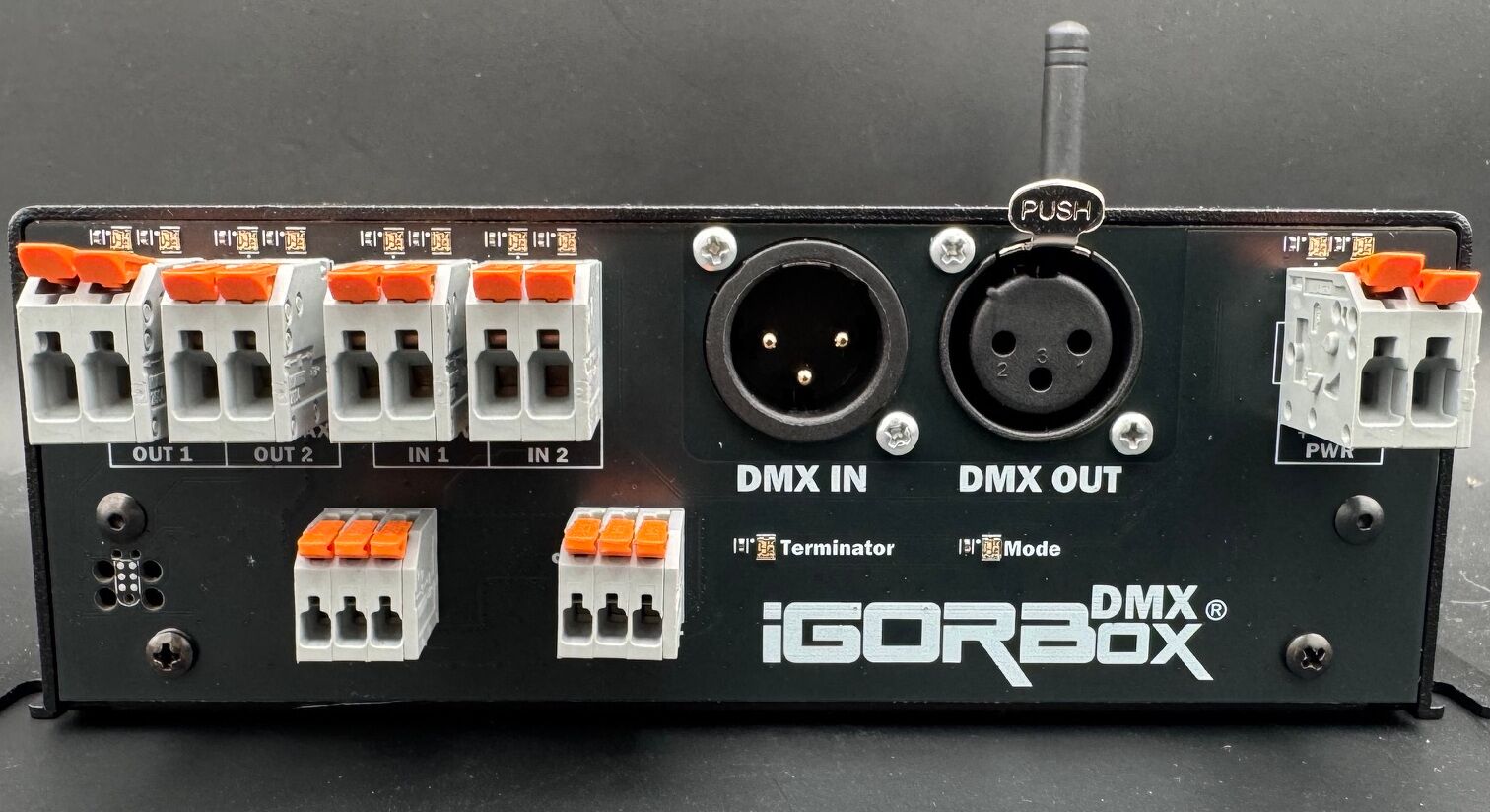
- Work with lights by name. Add your lights and effects (called "fixtures") from the fixture library, give them names like "Stage Left Light," and use those names when building your show.
- Manual control from the browser. Grab a fixture's sliders, color picker, or pan/tilt pad live from the Studio, no show required. Great for setup and testing fixtures.
- Use lighting in puzzle logic. Logic Rules can respond to another lighting console or hold a light at a chosen setting until you release it. Handy for escape room puzzles and interactive effects.
- Safe Zones™ let you set minimum and maximum values for a channel, helping keep movements within the limits you've configured when IgorBox controls it. These limits do not apply in Buffer Mode to channels IgorBox is only passing through from another console. Read the setup guide before using them with moving props.
- Use IgorBox alongside your lighting console. Buffer Mode lets your show take over the lighting or control only your own fixtures while the console handles the rest. If the console stops sending a signal, the lights keep their last look and Studio shows a No signal badge.
- Recording. Capture what a console is sending and turn it into an editable IgorBox show.
- Keep shows up to date after an address change. If you change a fixture's DMX address, Studio lists the affected shows and offers to send updated copies to your controllers.
- New lighting tools in the timeline. Plan where a moving light points and adjust effects such as strobes directly in your show. See DMX timeline tools.
A setup lesson from the beta
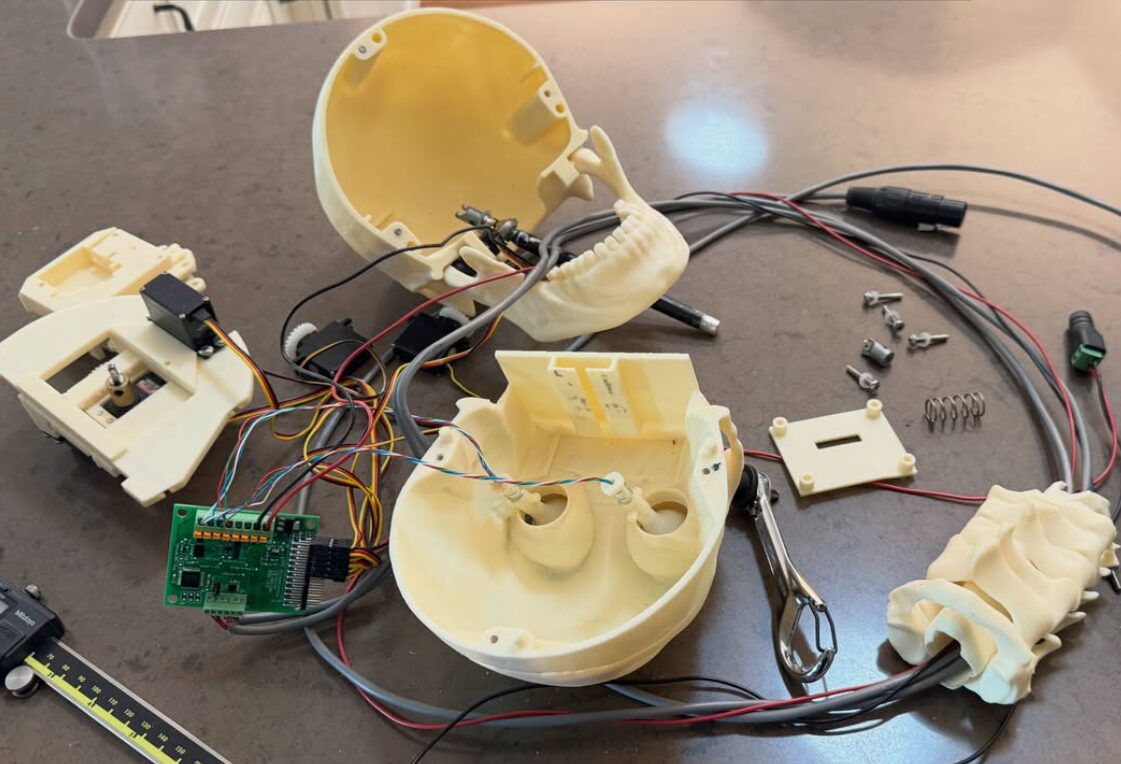
A skull prop behaving unexpectedly reminded us how important it is to check DMX addresses. Before combining lights and moving props, check each fixture's instructions and make sure their channel ranges don't overlap. If you're unsure which addresses to use, ask us for help.
Build a show around an audio file
This one is for the creators. Most shows start with the audio, so now the Studio does too:
- The create-show page has a new "Match length to an audio file" picker. Choose a file and Studio sets the show's length to match, fills in a name, and adds the audio to the timeline. You're ready to add your effects.
- The Media Library gets a matching "Create show from audio" shortcut on every audio file.
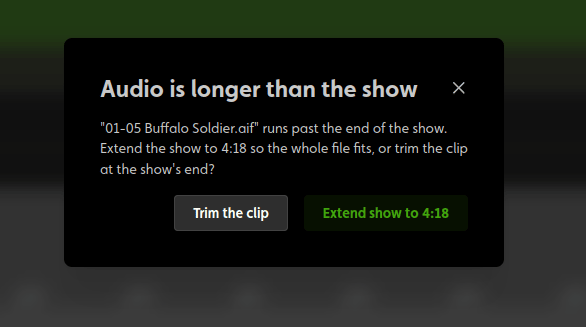
- And in the timeline editor, adding an audio clip that runs past the end of a show now asks whether you want to extend the show to fit or trim the clip, instead of silently cutting it.
Audio, Bluetooth setup, and the smaller wins
- Fixed a rare mid-show restart that could happen when audio started.
- Failed downloads keep the old show. If a show download fails, the controller keeps playing the previous copy instead of losing it.
- Fixed the startup welcome-sound crackle that would happen sometimes.
- Bluetooth setup fixes. Bluetooth setup used to fail to find WiFi networks on a box that already had bad WiFi saved, which is exactly when you reach for Bluetooth setup, like moving a box to a new location. Fixed. Pair this with the IgorBox Connect app and moving a controller is genuinely painless now.
- Factory reset by the front button now wipes the storage the same way Format/Repair Storage does. The status LED blinks purple while it works; don't cut power until it gives its long confirmation flash. See Front Button.
- Front and rear panel LED indicators standardized across the fleet (inputs, relays, DMX mode, terminator), so wiring a box or just finding the correct port at a glance is easy now.
Studio round-up
Beyond the show and DMX features above, the Studio picked up some genuinely useful things over the summer:
- Replace Hardware. If a physical box dies, you can now swap in a new box while keeping the same controller in your Studio. Every show, rule, trigger, fixture reference, and channel name that pointed at it just keeps working. No re-doing your programming because of a hardware failure. You'll find it on the controller's Details tab.
- Fixture import fix. Importing fixture profiles for complex multi-part moving heads (the kind with multiple beams or rings) used to fail. Now it works.
- Triggers API. The API now exposes input-based triggers that were previously invisible to integrations, alongside the named triggers it already returned.
- Smaller improvements: social links in the footer, a steadier dashboard layout while pages load, clearer error messages for integrations, and more reliable connections between Studio and your controllers.
Get the update
The Studio updates are live right now. Firmware v2.2.0 is rolling out to everyone today after three months on the beta track, and your controllers will show an "upgrade firmware" prompt on their overview page. Accept it when it's convenient; the update takes one reboot and nothing needs to be re-deployed afterward. Show looping, chaining, Stop Show, Identify, Format/Repair Storage, and all the DMX features need v2.2.0 to work, and the Studio will tell you when a controller is still on an older version and something isn't supported on it.
As always, thanks for building wild things with IgorBox, and we are so happy we get to build such a cool product together!