IgorBox DMX
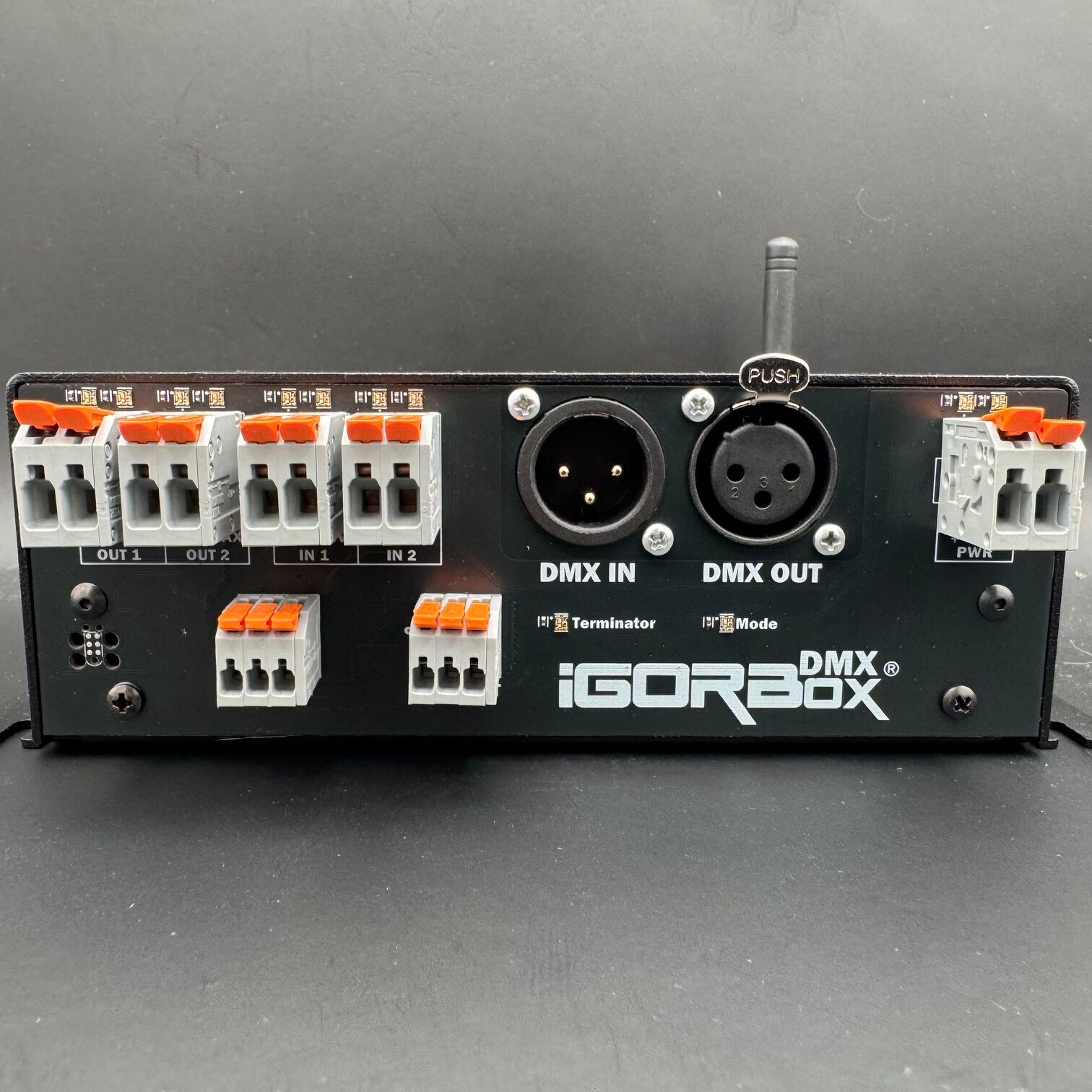
The IgorBox DMX is a show controller that speaks DMX. It drives a full universe of stage and effect lighting (par cans, moving heads, fog machines, DMX-controlled props) from the same timeline that plays your audio and fires your relays. One box, one show, everything in sync.
It's also a good citizen in rigs it doesn't own: drop it between an existing lighting console and your fixtures in Buffer mode and it passes the console's signal through untouched, overriding only the DMX channels your IgorBox show uses. And if the controller ever loses power, a hardware failsafe hardwires the DMX input straight to the output, so a dead IgorBox never blacks out your chain.
DMX support arrived with controller firmware 2.2.0. Every DMX feature on these pages (the three operating modes, Safe Zones™, DMX input, recording, and the DMX blocks in Logic Rules) needs 2.2.0 or newer on the IgorBox DMX. Accept the update prompt on the controller's page in IgorBox Studio if yours is still on an older version.
What's in the box
| DMX out | 1 full universe of 512 DMX channels |
| DMX in | Buffer an existing console, listen for triggers, or record |
| Relay outputs | 2 × relay outputs rated at 1.5 amps. Each is a dry contact: a simple switch you pass your own power through |
| Inputs | 2 × isolated inputs for directly triggering shows |
| Connectivity | Ethernet + WiFi |
| Connectors | 3-pin XLR + WAGO® terminals |
| Audio | Stereo line out (3.5 mm) |
| Storage | 32 GB onboard |
| Front panel | Status LED, 8 RGB indicators, configurable front button |
| Power | 9–24V DC barrel, included supply is 12V DC |
Best for
- Show lighting and Stage lighting: par cans, moving heads, strobes, and anything else that speaks DMX, with smooth fades and full color control from the Studio timeline
- DMX props: foggers, flame effect controllers, servo-driven animatronics, and other DMX-controlled effects
- Adding scares to an existing DMX Universe: Buffer mode lets IgorBox take over just the fixtures it needs, while your lighting console keeps running everything else
- Lights + audio + props in one scene: the DMX universe, stereo audio, two relays, and two trigger inputs all live on one controller and one timeline
Quick start
- Power it up
- Connect to the network: plug in Ethernet, or add your WiFi network in your Studio's Settings before you provision. See Connectivity.
- Magic Provisioning: read the setup ID and add the controller in IgorBox Studio.
- Connect your first fixture: DMX out to the fixture's DMX in, then set the fixture's address. New to DMX? Start with DMX Basics.
- Patch it in the Studio: add the fixture to your controller so the Studio knows what's at each address.
- Build a show in the Timeline Editor and deploy.