Front Panel
The LED Controller's front panel mirrors the dimming behavior of channels 1–8: each indicator dims with its channel, giving you a real-time visual of your show even if the lights are off-stage.
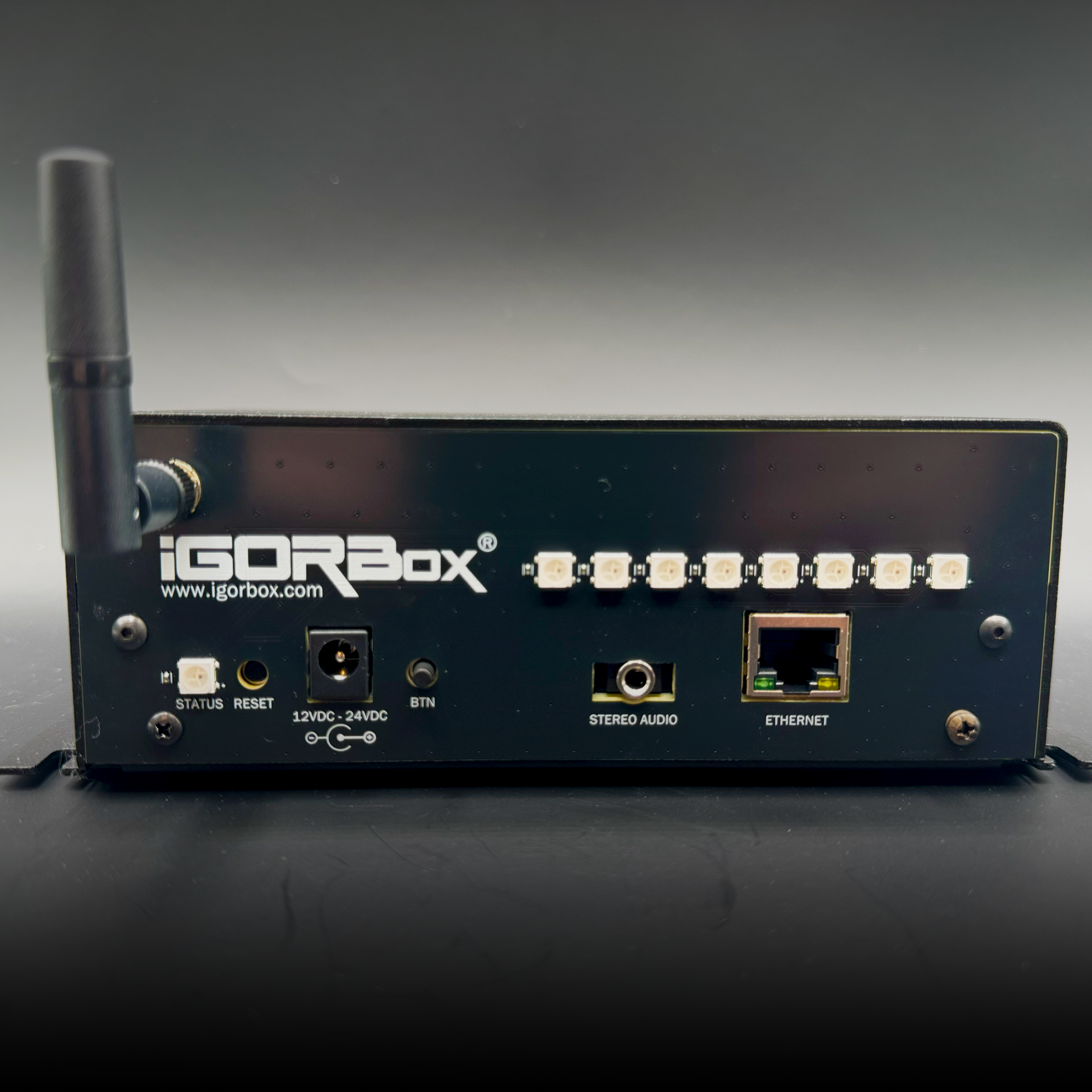
| Element | What it tells you |
|---|---|
| Status LED | Overall controller state. See Status LED |
| 8 RGB channel indicators (outputs) | One each for channels 1–8. Brightness tracks the channel's dimming level. |
| Front button | Configurable per controller. See Front Button |
The two isolated inputs have no front-panel lights. Watch their rear connector lights instead: bright purple when the input is active, and (as of firmware 2.2.0) a faint purple marker glow when idle. See Indicator Lights.
Channel indicators
Each output channel's indicator dims smoothly with the channel: at 0% the indicator is off, at 100% it's full brightness, and everywhere in between scales accordingly.
The color is configurable in Studio (Configuration tab → Channel → Indicator Color). Default is orange; many users color-code by zone or by show.
This makes the front panel a handy way to check your show at a glance: even if your stage lights are unplugged or pointing the wrong way, you can see what each channel is doing right on the box.
Channels 9–16 live on the included breakout boards and have no front-panel lights. There are no onboard indicators for these channels.
Indicator brightness
The whole front panel is dimmable globally (Configuration tab → Channel LEDs → Brightness). For dark haunt scenes, drop the brightness or turn the indicators off entirely.
Mounting
Same chassis and mounting pattern as every current IgorBox controller. See Mounting for the footprint drawing, wall-mount and DIN-rail options, and hardware-reuse notes.